











New Update: MCP / AI Agents, Dev Tools, Plugin Store, OCR + PDF Text Search, etc.
We released another update based on community feedback. Thank you for your participation here and for helping us improve zzTakeoff.
Check out our videos for the new features:
- New Features - Details (28 min)
MCP / AI Agents - Now available for all Pro Users
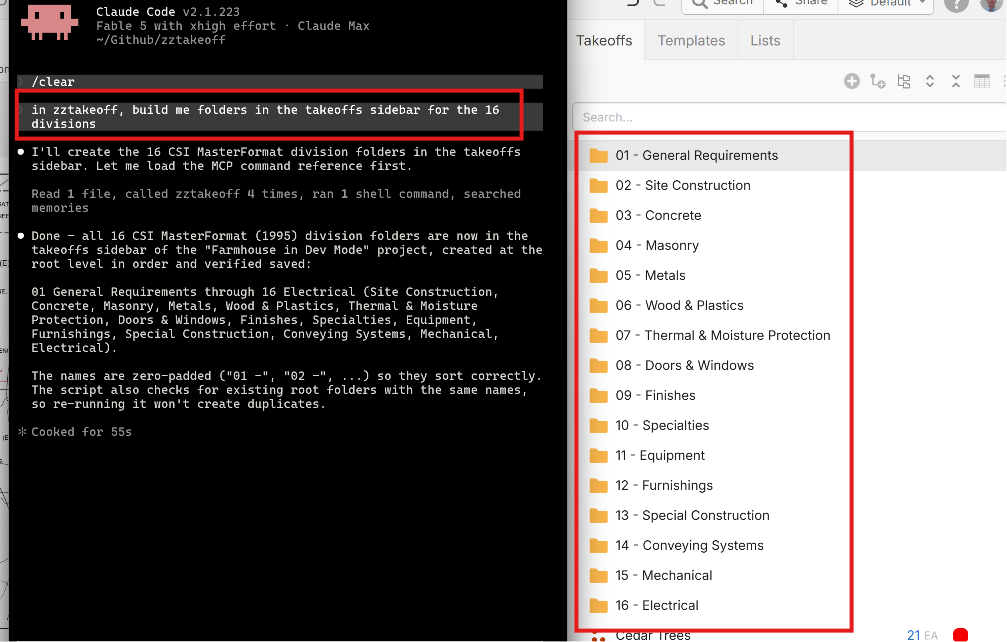
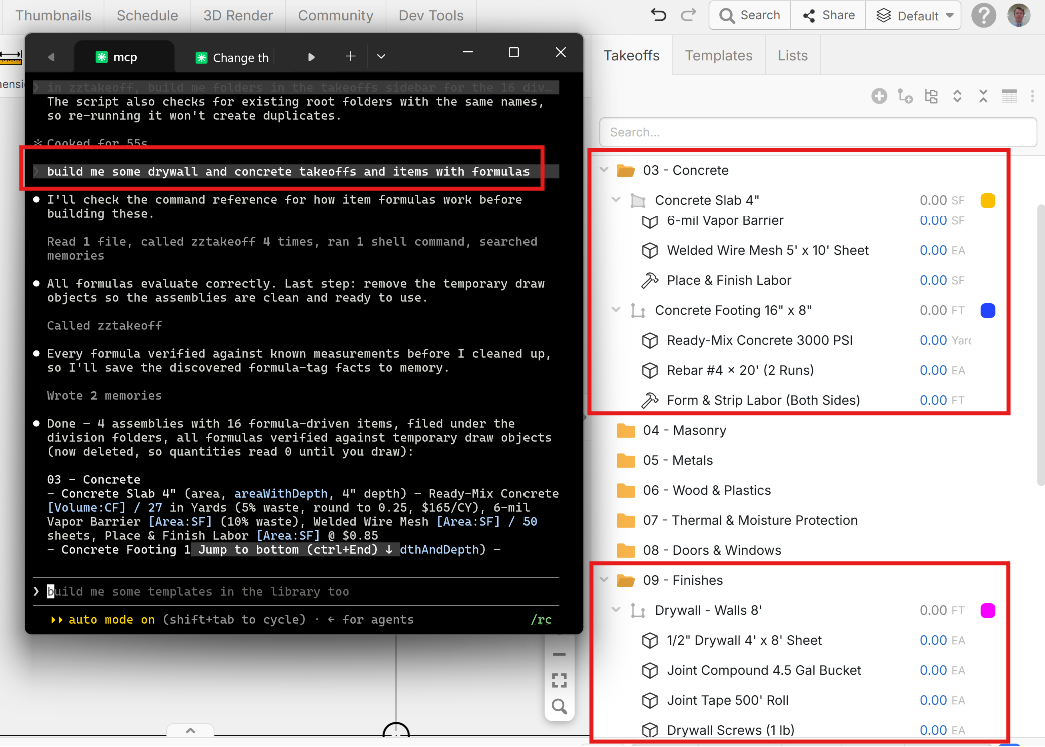
Initially we were planning the MCP to be a feature for Ultimate users only, but we've decided to make it available for all Pro users. 🙂🚀🎉 You can now connect AI assistants like Claude, ChatGPT, Grok, and Gemini directly to zzTakeoff. Once connected, you can ask your assistant to work in your open zzTakeoff project, such as creating assemblies, reviewing takeoffs, making bulk changes, creating Plugins, or pulling numbers. It also works with command-line tools like Claude Code, Codex, and Gemini CLI.
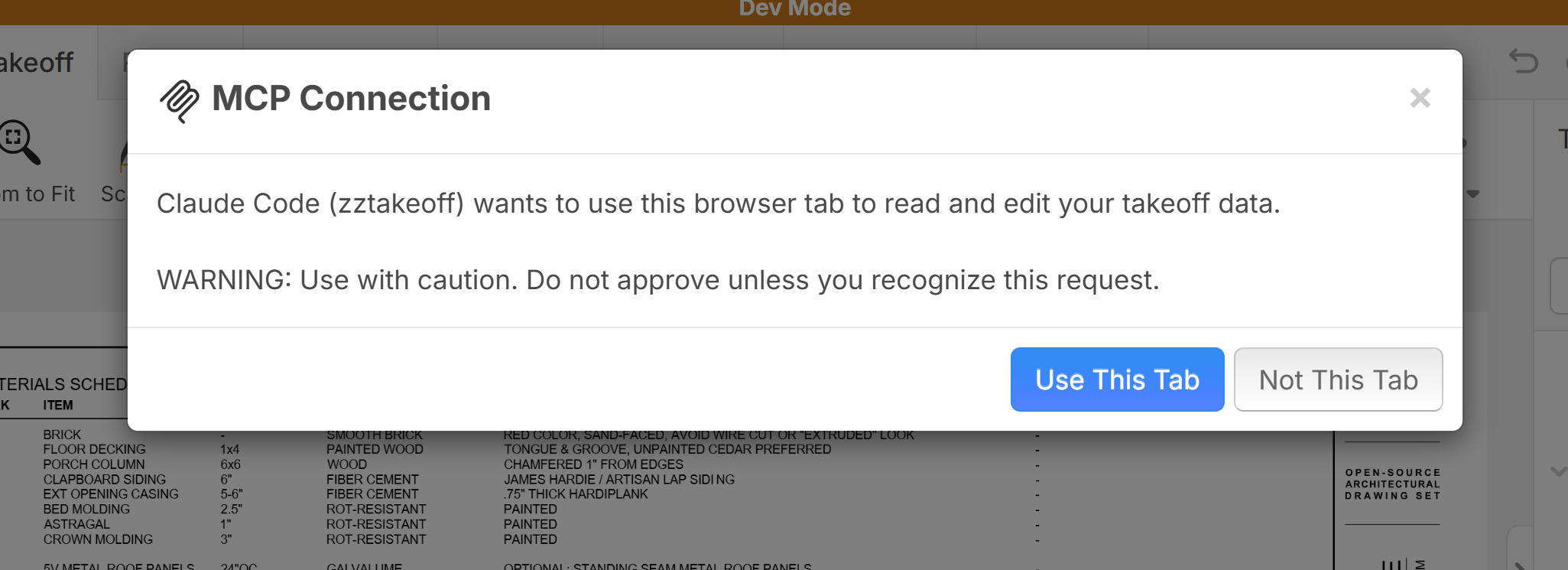
Example having AI create 16 division folders:
Example using AI to create assemblies:
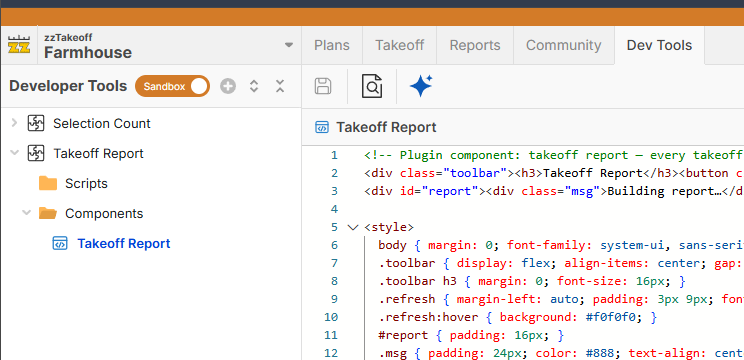
Dev Tools
Dev Tools allows you add your own custom UI components/scripts to zzTakeoff, so you can extend the software to fit how your team works. You could build custom reports, dashboards, calculators, or panels that work with your project's takeoffs, pages, and properties, and they appear right inside zzTakeoff.
Plugin Store
The Plugin Store is now open to everyone. You can browse plugins, install them into your workspace, and upgrade or customize them.
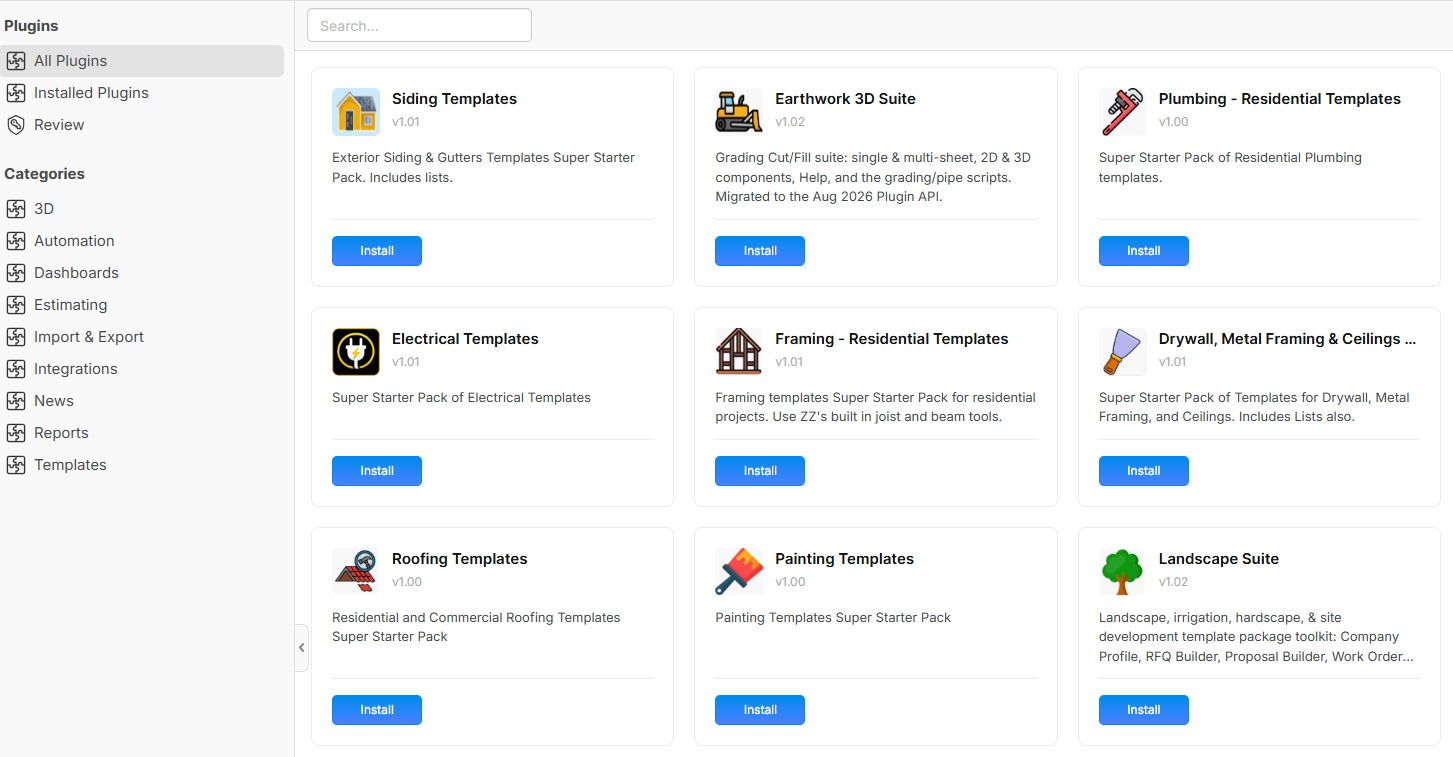
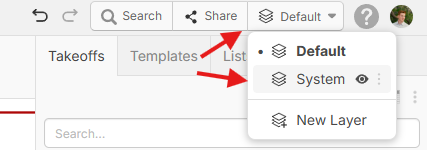
System Layer
Overlays, scale markers, and imported PDF hyperlinks now live on a shared System layer that shows on every layer. Each user can hide it from the Layers dropdown, it can be locked, and it can be granted when you share a project with layer restrictions.
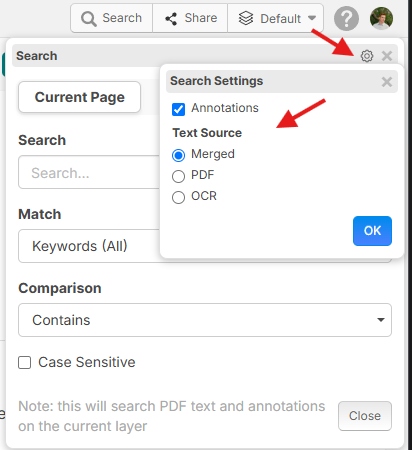
OCR + PDF Text Search
OCR text is now merged with the PDF's own text layer for search and auto-detection. In the search settings, you can pick your text source: Merged, PDF only, or OCR only. The settings popover can also be dragged out of the way.
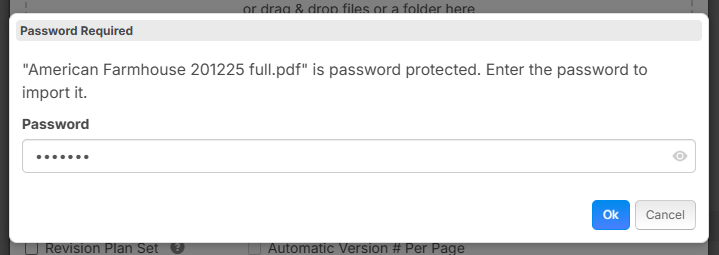
Password-Protected PDFs
You can now import password-protected PDFs. When you upload one, zzTakeoff shows a Password Required prompt. Enter the password and the file imports normally.
Better Tool Hints & Right-Click Arc Point
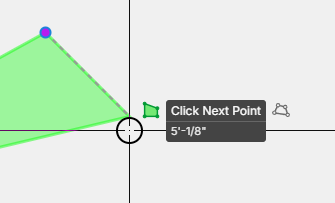
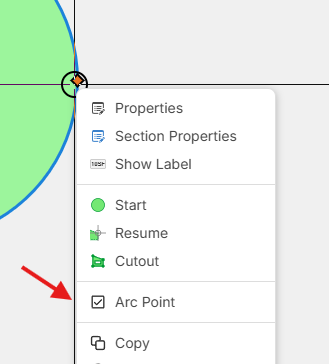
Tool hints now show a second line with live distance or dimensions while you draw, and switch to "Release at…" while you drag a point. Right-click a point on a takeoff and choose Arc Point to turn that corner into an arc.
Snap to Scaled Line Width Edges
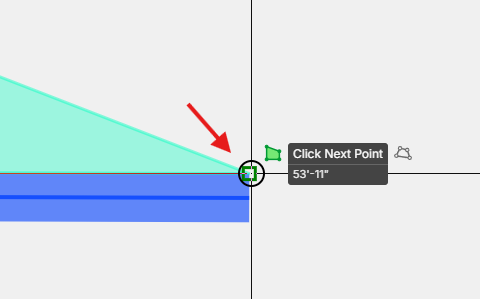
Linear and segment sections that have a scaled line width now snap to both edges of the band, not just the centerline.
Drag to Show/Hide & Random Color
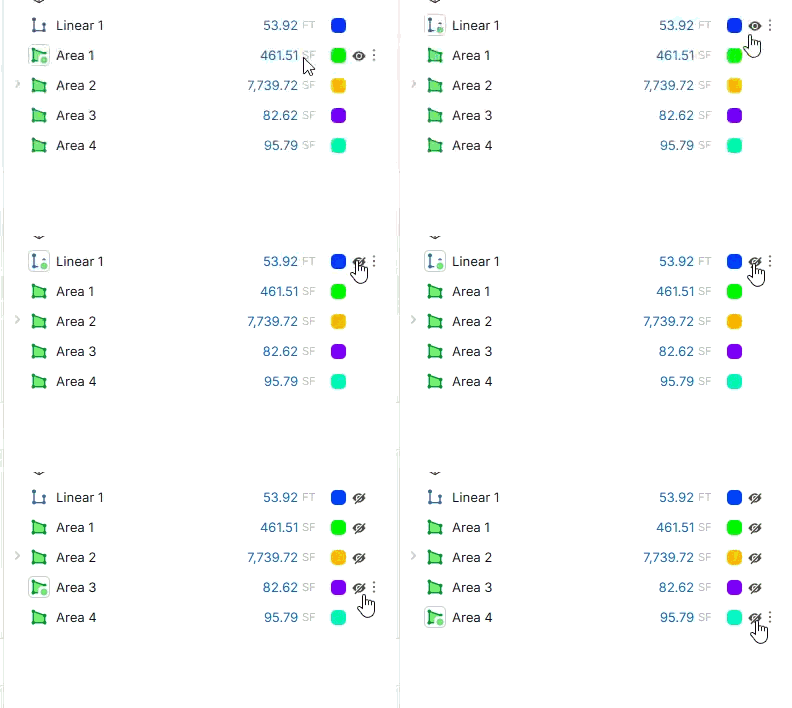
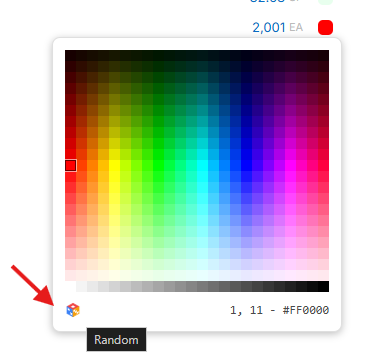
Click an eye icon and drag across others to show or hide many takeoffs at once, as well as a new Random Color button.
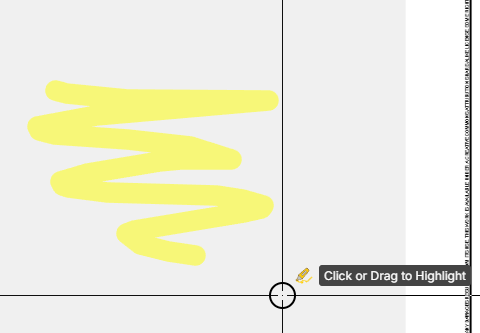
Highlighter - Freehand
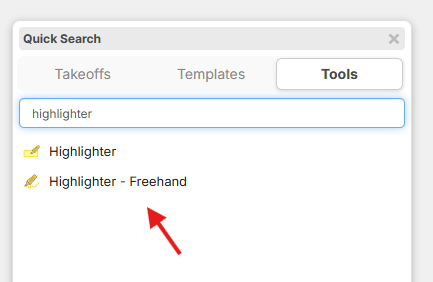
Along with the regular box highlighter, you can now highlight freehand. Press / to open the menu, choose Highlighter - Freehand, and draw directly on the plan.
Auto Count - Match Text & Negative Examples
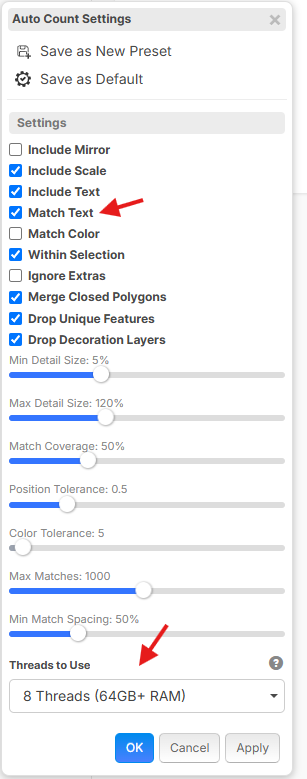
- Match Text: on by default. zzTakeoff reads the text inside the symbol, so if your sample says W01, matches reading W02 or W03 are pushed down the list automatically.
- "Not a Match" examples: flag a result as a negative example and similar false matches are removed. This works in both Vector and Image mode (previously only vector mode).
- Threads: a new setting that scans with more CPU threads on capable machines.
Area Offset Cutouts
Offsetting an area inward now cuts the new section out of the original area.
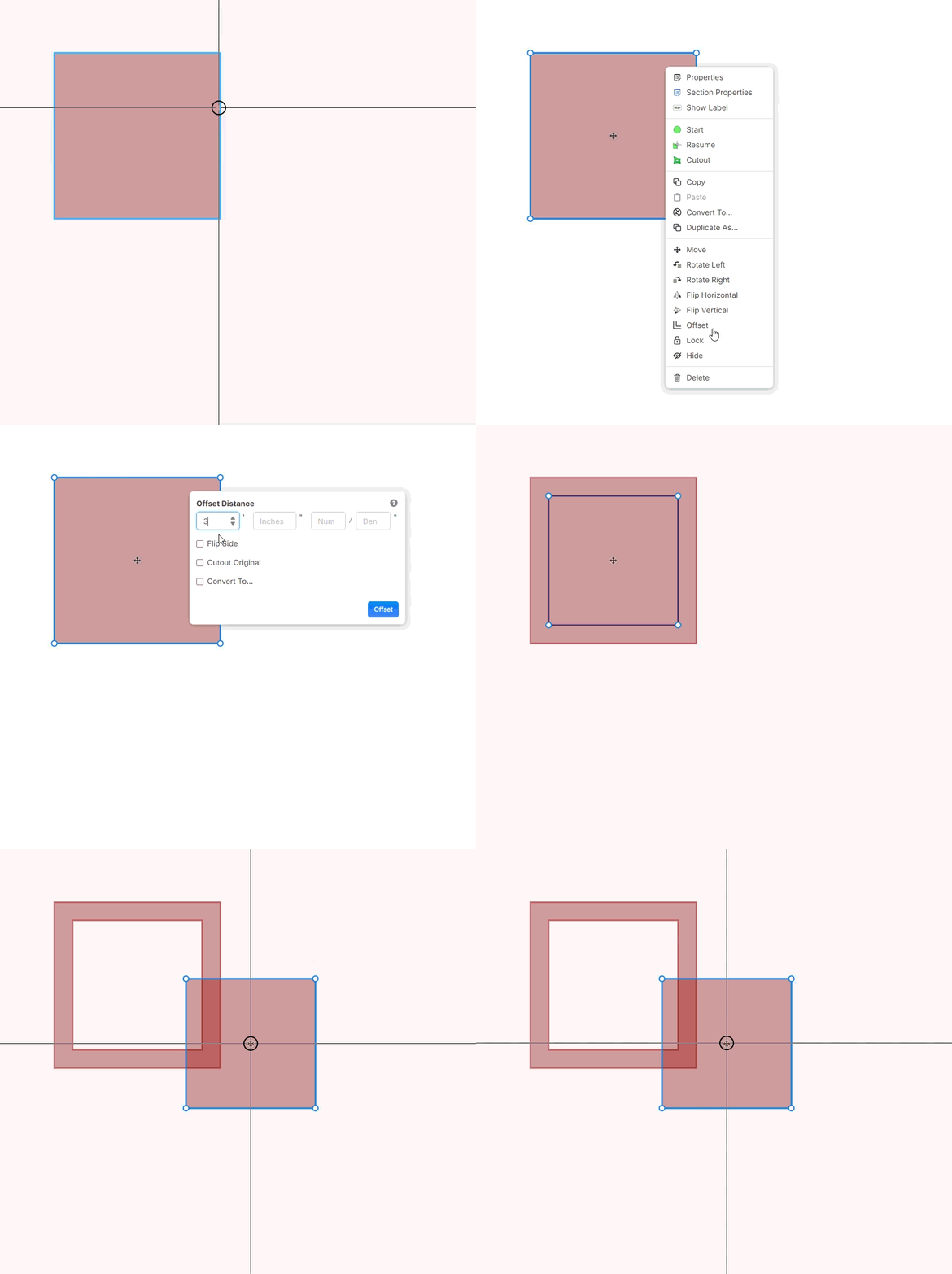
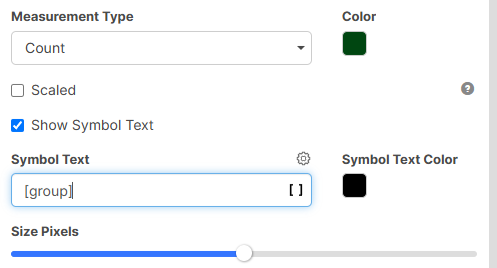
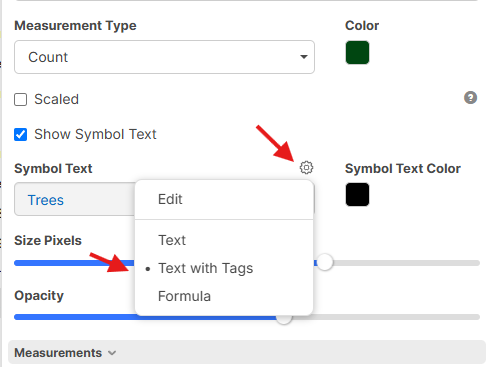
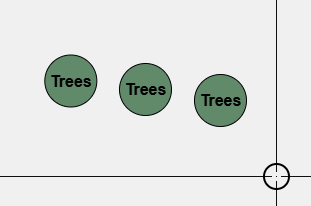
Symbol Text with Tags or Formulas
A count's symbol text can now be text with tags or a formula, so the label on each count can pull from your properties.
Collapsible Folders on the Plans Page
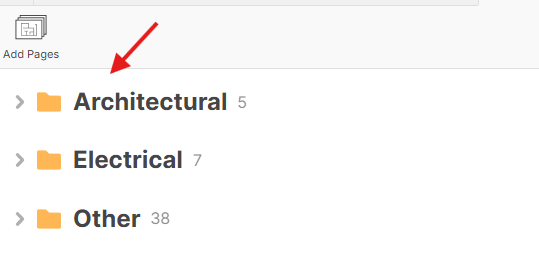
Folders on the Plans page can now be collapsed. Click a folder heading to collapse or expand it, and a collapsed folder shows how many pages are inside. This makes large plan sets much easier to move around in.
Rename Plan Sets
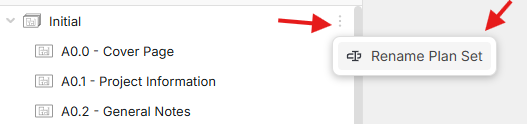
You can now rename a plan set right from the Pages sidebar. Right-click the plan set and choose Rename Plan Set.
Misc.
- Auto Scale now utilizes combined OCR + PDF text
- Product picker searches as you type (Enter selects the first match)
- Max records for MCP raised to 10,000
- Clearer message about which rows failed when a batch insert doesn't fully save, and undo handles it correctly
- Fixed takeoffs lingering in the Pages sidebar after their sections were moved or deleted
- Invite emails reformatted, and now include the inviter's name and workspace
- When you follow a user, you now see their layer show/hide state too, and you jump to their most recent page and layer
- Support chat button on the Reports tab
- Layer icon visible on mobile
- Dark-mode styling for confirmation dialogs
- Community: new Developers / AI / MCP channel, and you can follow tags
- Faster PDF vector processing
- Various bug fixes and tweaks
Thanks for all your support! 🚀
%22%2F%3E%3Ctext%20x%3D%2232%22%20y%3D%2233%22%20text-anchor%3D%22middle%22%20dominant-baseline%3D%22central%22%20font-family%3D%22Arial%2C%20sans-serif%22%20font-size%3D%2226%22%20font-weight%3D%22600%22%20fill%3D%22%23fff%22%3EJO%3C%2Ftext%3E%3C%2Fsvg%3E "Jeffery Osborn")
While the AI agent add looks good, the issue I have with the package I have for ChatGPT, I run out usage fairly quickly, not sure if anyone has the a pro version of either Claude and ChatGPT, and what their experience is. I was able to have ChatGPT continue takeoff that I started that needed to be duplicated 12 different times, It did the takeoffs and correctly, even the AI agent couldnt get auto count to work by the way, which this could be awesome but being limited on usage allowance is going to limit how much I can use a separate AI agent to complete tasks.
👍1Have there also been talks of being able to report filter by drawing folders or even drawing sets? This would be a huge plus as well. Thanks for all the improvements on this platform!
👍1%22%2F%3E%3Ctext%20x%3D%2232%22%20y%3D%2233%22%20text-anchor%3D%22middle%22%20dominant-baseline%3D%22central%22%20font-family%3D%22Arial%2C%20sans-serif%22%20font-size%3D%2226%22%20font-weight%3D%22600%22%20fill%3D%22%23fff%22%3EGB%3C%2Ftext%3E%3C%2Fsvg%3E "Geoff Van Brunt")
%22%2F%3E%3Ctext%20x%3D%2232%22%20y%3D%2233%22%20text-anchor%3D%22middle%22%20dominant-baseline%3D%22central%22%20font-family%3D%22Arial%2C%20sans-serif%22%20font-size%3D%2226%22%20font-weight%3D%22600%22%20fill%3D%22%23fff%22%3ENM%3C%2Ftext%3E%3C%2Fsvg%3E "Nik Martin")
@Jeffery Osborn. I have the pro Claude and still was having usage limit problems. I think the amount is the same you just get added features. Tip is to run you heavy task in off hours. The meter is not as expensive then. Try and get your processes to scripts that can run in ZZ. That will help too.
💯1@Nik Martin - At least with ChatGPT, they have whats called a 5-hour usage limit, if I go pro it says no 5-hour usage limit. It would be nice if ZZ could package as a separate option the AI agent, maybe 3 different pricing structures, Standard, Pro and Pro with AI
%22%2F%3E%3Ctext%20x%3D%2232%22%20y%3D%2233%22%20text-anchor%3D%22middle%22%20dominant-baseline%3D%22central%22%20font-family%3D%22Arial%2C%20sans-serif%22%20font-size%3D%2226%22%20font-weight%3D%22600%22%20fill%3D%22%23fff%22%3EJ%3C%2Ftext%3E%3C%2Fsvg%3E "Jes")
@Jeffery As Nik mentioned, once you have GPT/Claude build you self contained scripts/plugins inside of your zz account, you won't need to use GPT so much and you can just use your pre-built stuff as you please. You just need to build the stuff out first though, just like you did with your assemblies. It's possible depending on what you want it to build that you may have to bite the bullet and pay for a month of pro on GPT to gain access to more intelligent/complex models, but once you're set you can revert back to free if you want.
👍1
@zzTakeoff Team,
Love what your doing.... now the feedback.
This is getting out of hand and our enviroment is starting to be a cluster F with everyone starting to add plug-ins and tabs at the top. Need ability to shut off these tabs by project please! Or really the inverse, when you start a project you should choose the add-ins you want for the team to see.

Are there some scripts examples? Like what kind of script would you create? Do do what? Could I create a script that would takeoff the lighting? I think each job is specific, let me know what you guys are doing and see how I can apply that to the electrical takeoff side of this.
@Jeffery Rulon posted something he did with Claude involving electrical the other week to give you an idea