










 Q & A
Q & AHidden Custom Properties
So I created a series of custom properties, not all properties apply to all takeoffs, trying to clean this up I hide all of the properties that would not apply to takeoffs, however the issue I have is that when hidden and shown as additional properties in the takeoff properties, the features of the custom properties are removed, these are pulldowns, and the pulldowns are no longer active so make changes will not work, they will also not appear in the right click option to update property.
Looking to see if any of the custom properties are used anywhere within the takeoff, can they be fully available for that takeoff item?
The custom properties list can end up getting out of hand and having so many properties in all of the takeoff are quite over whelming especially when getting new users trained to use the system
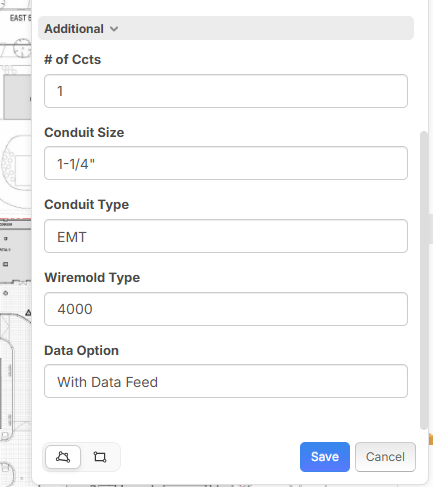
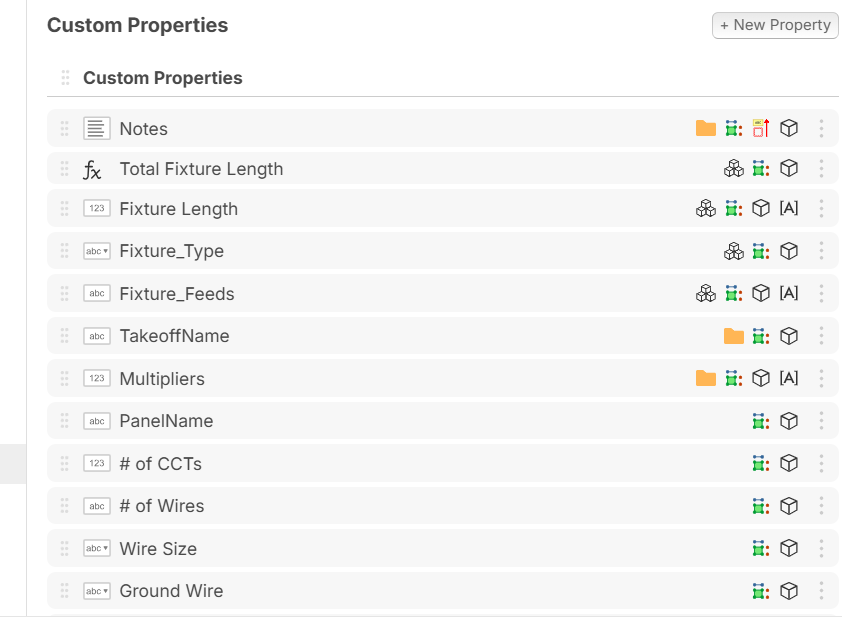

Hey Jeffery, when you hide the custom properties, if you want your existing takeoff properties to show in the correct group and have the dropdowns, you will need to "show" those properties on the takeoff/template.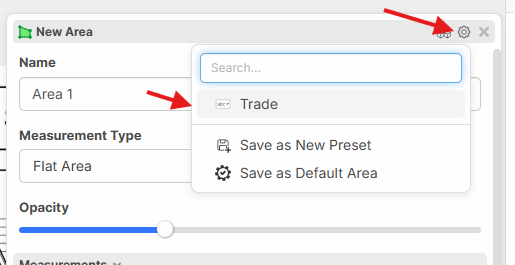
Once you apply that custom property to the takeoff/template, it will also show up in the right-click update property menu as well.
%22%2F%3E%3Ctext%20x%3D%2232%22%20y%3D%2233%22%20text-anchor%3D%22middle%22%20dominant-baseline%3D%22central%22%20font-family%3D%22Arial%2C%20sans-serif%22%20font-size%3D%2226%22%20font-weight%3D%22600%22%20fill%3D%22%23fff%22%3EJO%3C%2Ftext%3E%3C%2Fsvg%3E "Jeffery Osborn")
Ok, got it now, Thanks

@ Lorin
When I got to the reports and look at all the grouping options and columns, any way to hide all that crap thats not used? We have so many custom properites that are hidden.........but they are not hidden from the reports sadly.
👍1
Team, IF you are like me and have been looking for a solution here, but didn't quite understand the process. I want to lay it out step by step.
1. Go to Custom Properties
2. Open the Property (Grey Folder) that you want to hide
2a. Side note, this hides the property from your templates, but also hides it from any active takeoff item as well. (zz Team, please verify that this is how it should act. I would expect that checking the box does not affect any of my previous takeoffs.)
3. Scroll to the bottom and check the "Hidden by default" box, and SAVE.
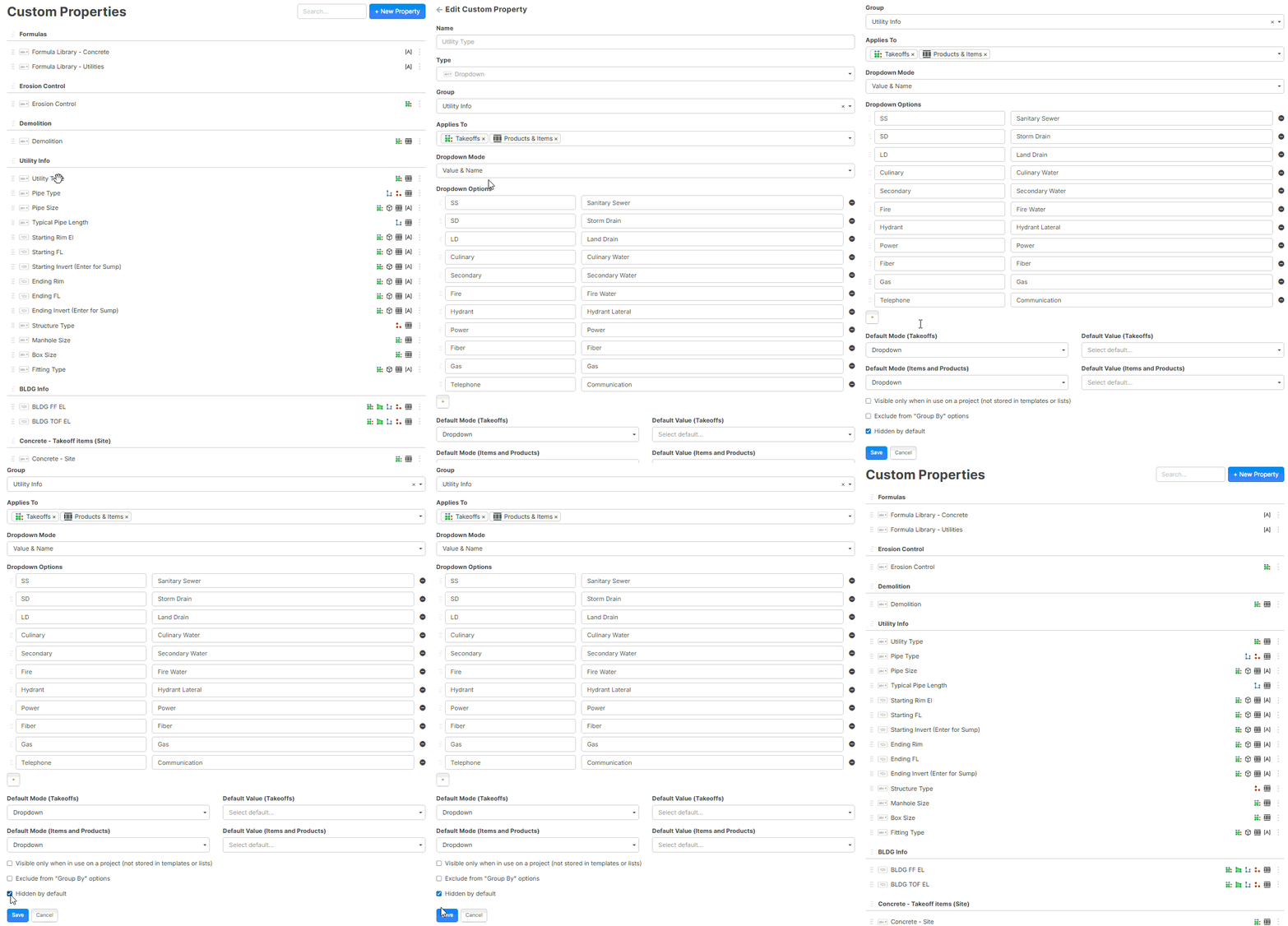
4. Go to your Template and open the properties, and do as Lorin shows above.
4a. Find the Property that you want to be displayed and select any that pertain. Once selected, SAVE.
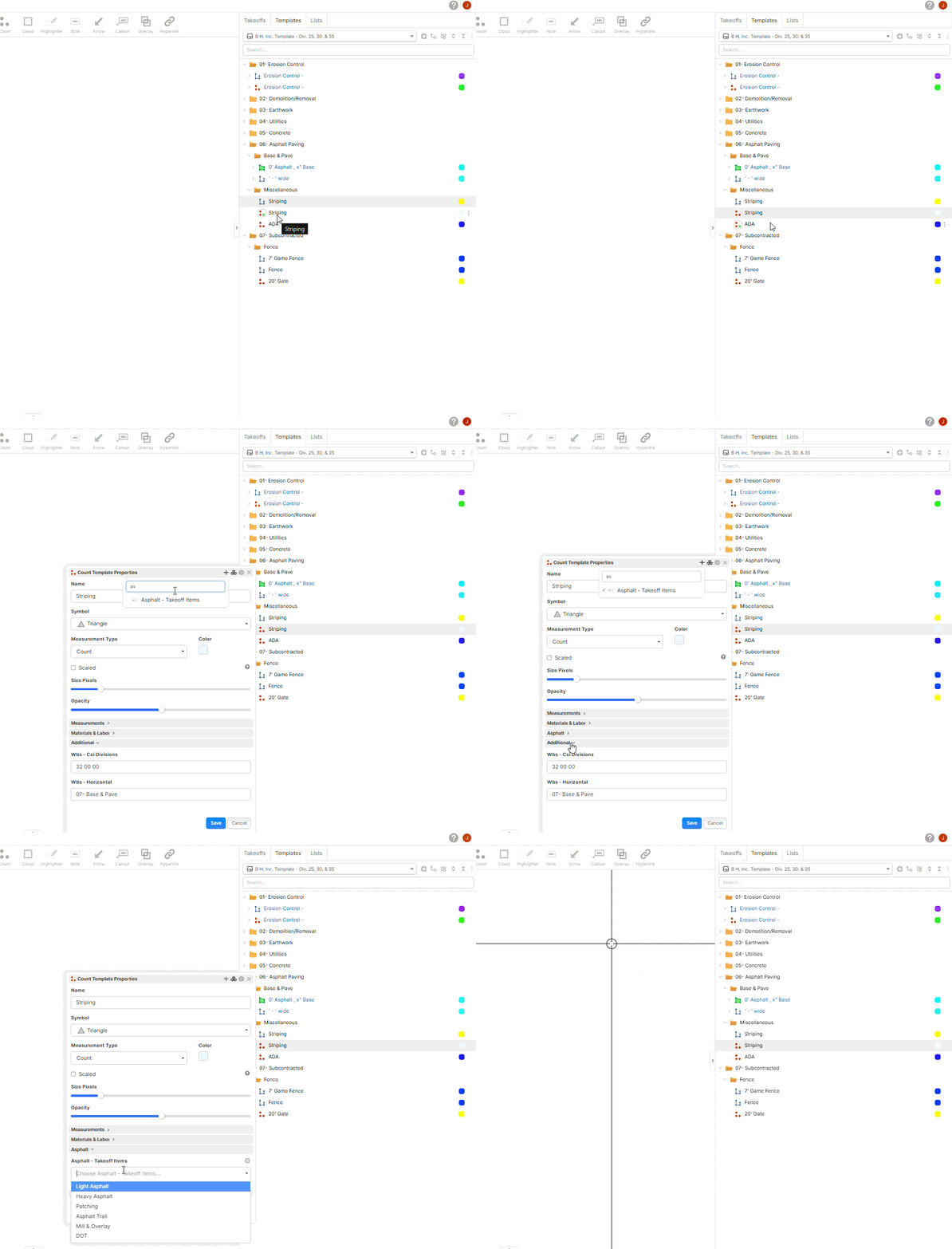
Now your property list that was five miles long should be substantially shorter, and you are substantially happier.
🚀2Yes, I figured that out now, so anytime I create a custom property I always hide, then, from the takeoff item properties, I can click the + sign and add any property that I want from the list and now its available and I can update properties and it only shows those items. I'm good with that now
💯1👍1