










 Feature Requests
Extract Schedule improvements
I'm looking to see if there is further development on the extract schedule feature, right now, I tried to extract this schedule, it will not recognize the columns and make everything into 2 columns only. I want to be able to select certain columns and then have it create conditions into an existing takeoff folder.
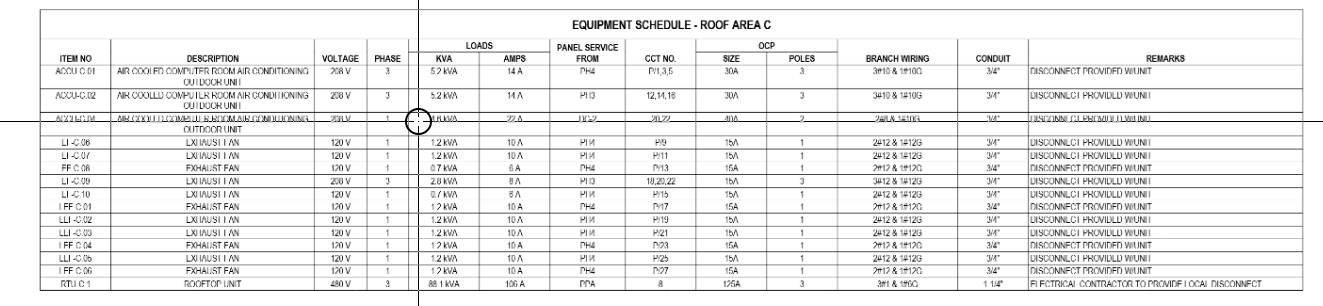

Have you tried this yet? I don't htink you can make it go into the yellow folders tho, only grey folders.
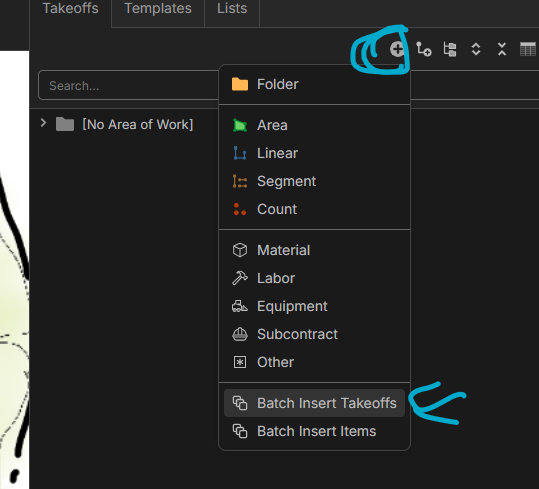

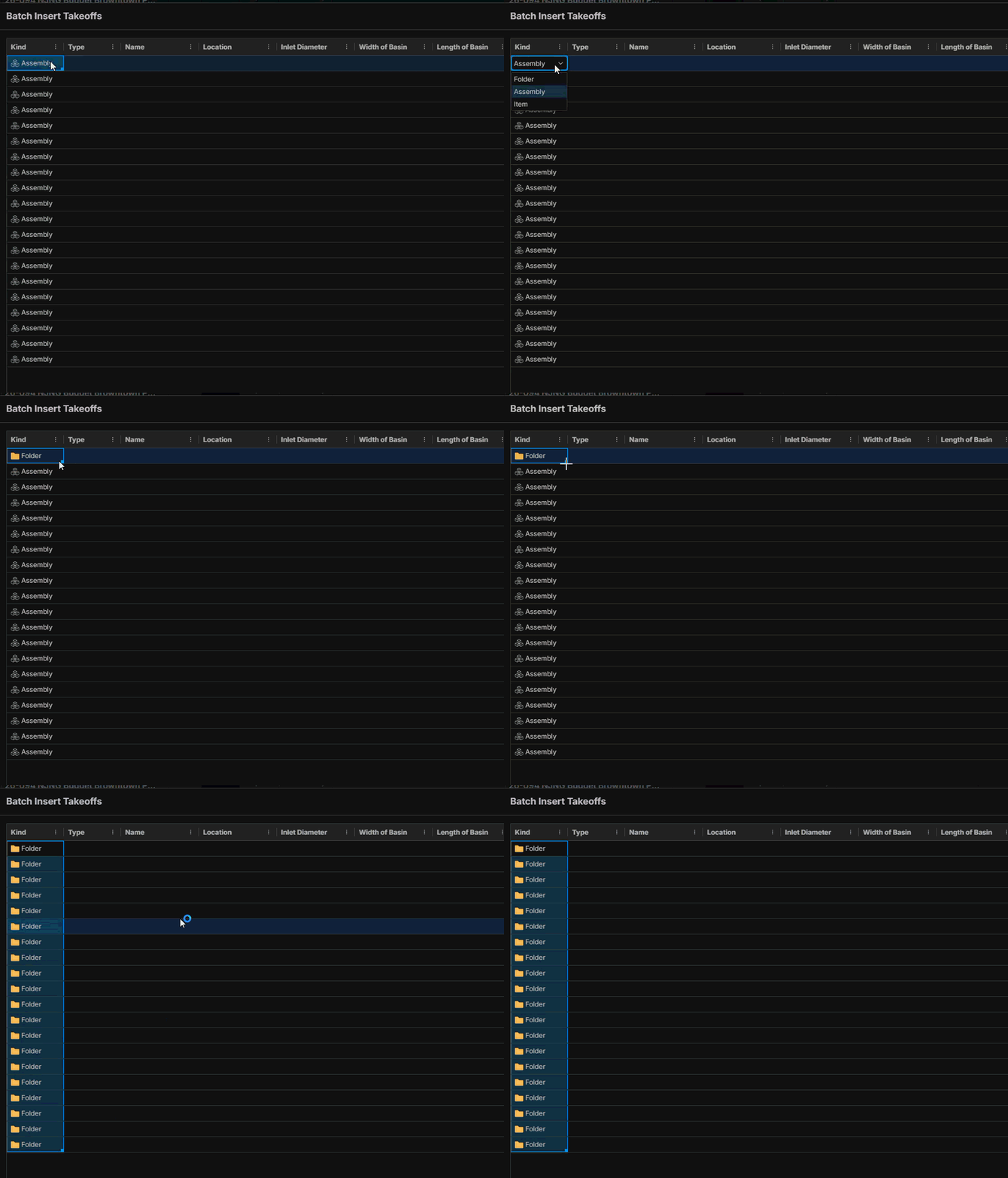
Batch import can make yellow folders; you just need to change Assembly to Folder then Copy/Paste your names.
%22%2F%3E%3Ctext%20x%3D%2232%22%20y%3D%2233%22%20text-anchor%3D%22middle%22%20dominant-baseline%3D%22central%22%20font-family%3D%22Arial%2C%20sans-serif%22%20font-size%3D%2226%22%20font-weight%3D%22600%22%20fill%3D%22%23fff%22%3EJO%3C%2Ftext%3E%3C%2Fsvg%3E "Jeffery Osborn")
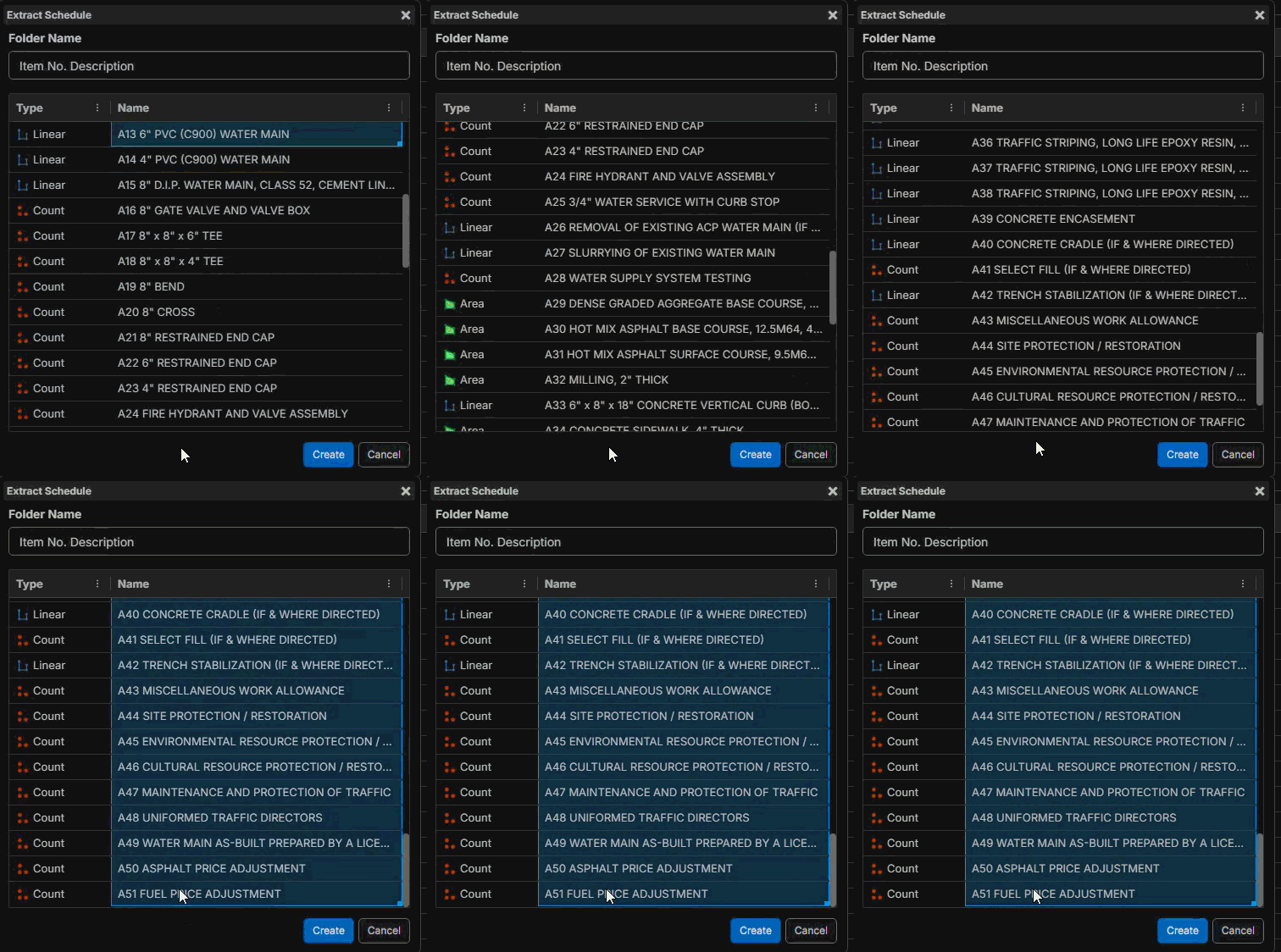
This is what I am talking about when using the extract schedule feature.
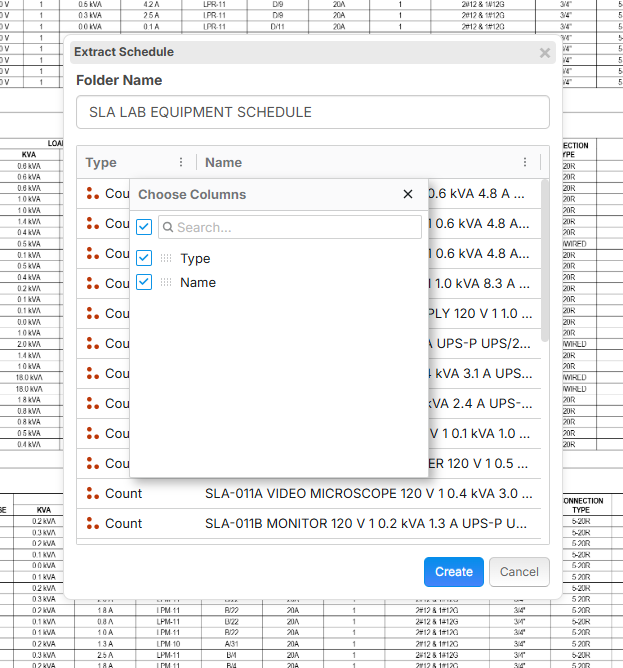
I selected the entire schedule
I dont know how the batch insert works with a schedule on the plans
%22%2F%3E%3Ctext%20x%3D%2232%22%20y%3D%2233%22%20text-anchor%3D%22middle%22%20dominant-baseline%3D%22central%22%20font-family%3D%22Arial%2C%20sans-serif%22%20font-size%3D%2226%22%20font-weight%3D%22600%22%20fill%3D%22%23fff%22%3EJ%3C%2Ftext%3E%3C%2Fsvg%3E "Jes")
Yes, extract schedule tool desperately needs improvements, I've been waiting for a year for it to be enhanced so that it can do things such as this:
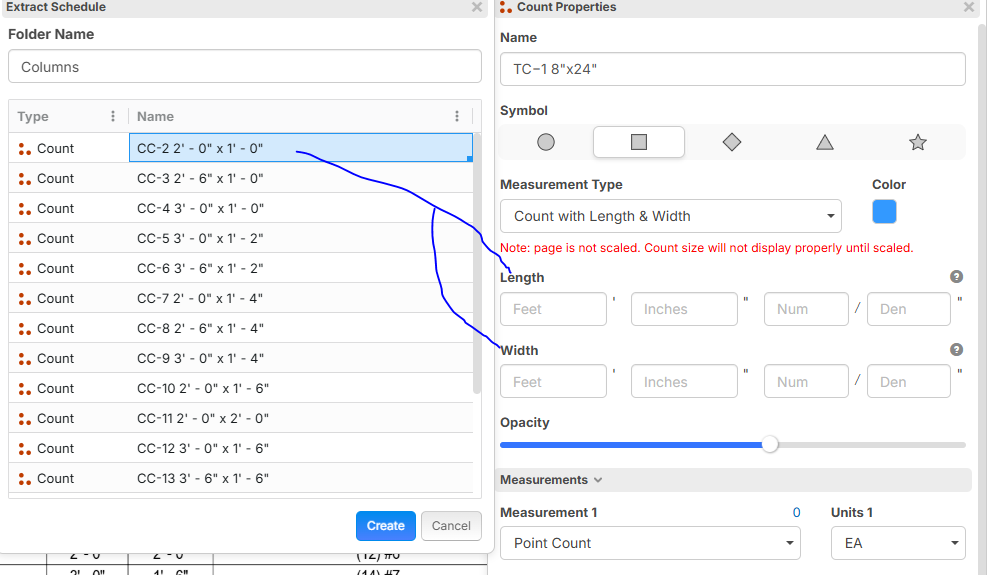
Batch insert still does not let you map to those fields either, so I can't even use the workarounds mentioned above by Kyle & Shawn
Story time:
I actually got into hot water with my boss yesterday because I was working on a complex building with a ton of beams and was already late on submitting the bid. The extract schedule tool hasn't been enhanced so that you could do things like what Jeffery is asking (and the functionality I asked for in this example above) where we can map the text it extracts, and I didn't have time to manually assign the 50+ beams it extracted and just left them exactly how zz extracted them.
Once I finally finished my takeoff and the time came to port everything to my Excel template, I had to scramble and format/convert things to decimals, and due to being in a rush, I had a keystroke error where I missed a decimal point on what just so happened to be one of the longest beams on the project. Instead of entering .92 (11 inches) for the beam's height, I put in 92 (which came in as feet). My estimate came in way too high as you can imagine on account of this 91 foot error and got a tongue lashing from boss man.
If I had been able to get those beams mapped directly into the width & depth fields of the takeoff object measurement properties, I would have been able to quickly generate a semi accurate totals report in zz to compare it to my Excel summary, and could have immediately identified that something was way off in my quantities. But because there were so many beams on this project and I was pressed for time, I never manually entered them into those fields, so I couldn't fall back on my ZZ data to discover this manual user error I created in Excel.
Please get this enhanced before I get fired 😫
🤣1☹️1when you use the extract schedule feature, you can highlight the Text it pulls up then CTRL+C, go to batch insert takeoff and CTRL+V in the name section. I do agree that the extract tool needs some improvements however, for the time being this is how I create folders.
@Shawn If a user wanted linear objects & counts to appear on their takeoffs in their actual dimensions, they still need to go in and edit the takeoff properties manually one by one since batch insert doesn't have those columns for takeoff object dimensions. And that's fine if you only have a dozen or so to enter. But on monster projects it just becomes a time consuming nightmare on top of all the other things you need to contend with
I completely understand that.
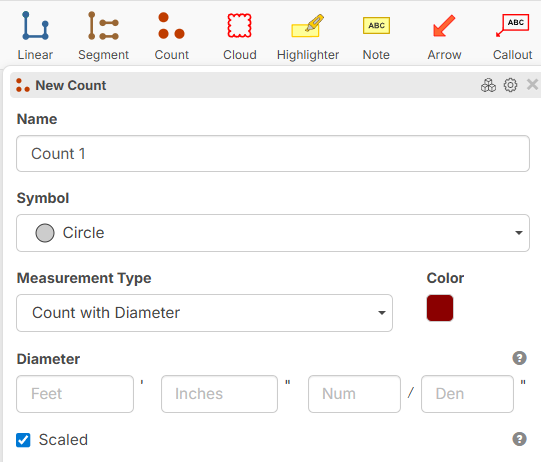
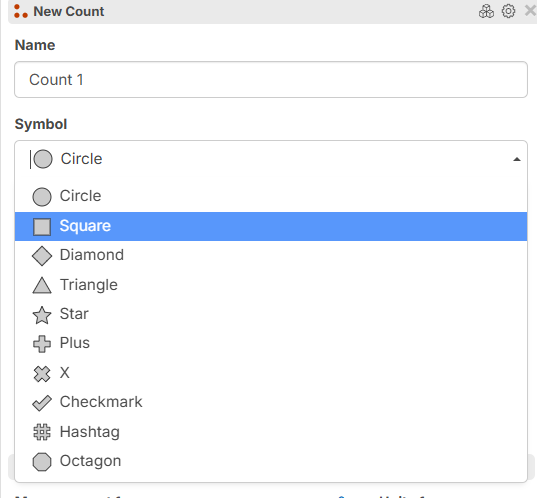
Where did you Find "Count W / Length & Width?
Sorry, going down a rabbit hole here.
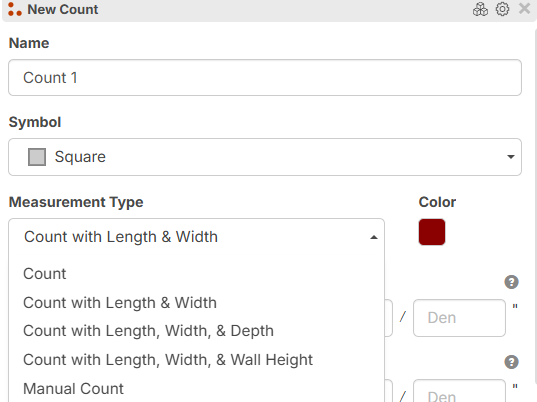
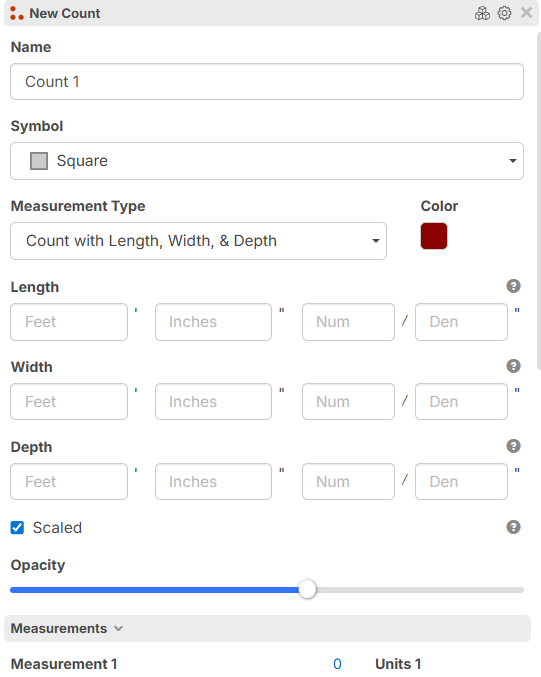
@Jes, you could set it up something like this. Granted, I had to do some back work to get to this, I took your list and asked CoPilot to change the formatting and split each into separate columns. then I Created a list called beams and did a batch import. I also had to create the "beam Length & Beam Width" to be able to import it. The custom properties on the count are inheriting the numbers based on the product selected. Like I said, rabbit hole. 🤣
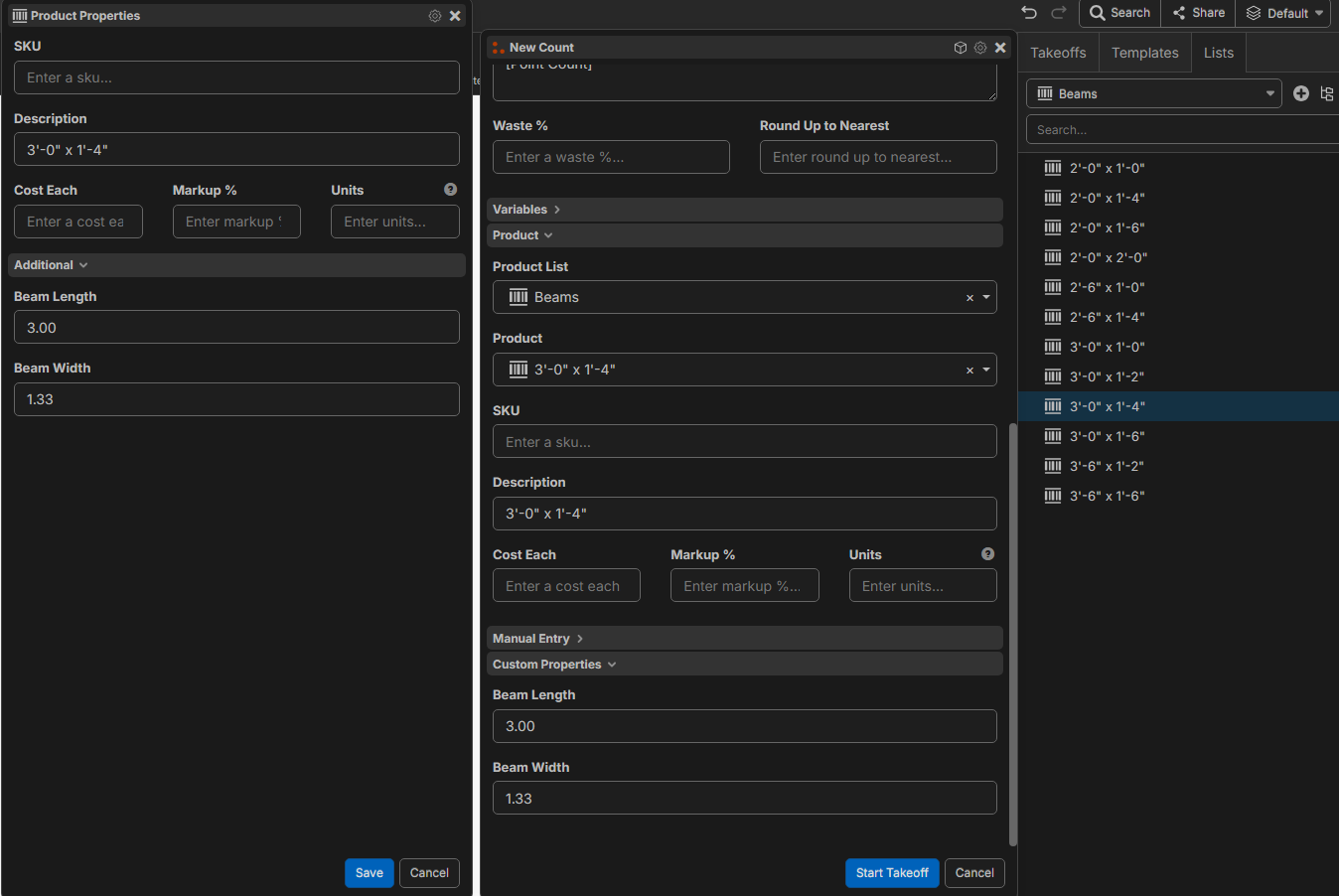
Would this work at all or did I go in a totally different direction?
@Shawn
 -->
-->
 -->
-->
 -->
-->
I'm not sure how doing this on the product level would help if the user wants the takeoff objects to match actual dimensions on screen. But even if they don't need that, they would still need to add all sorts of formulas & assemblies in order to be able to create takeoff reports with summaries that total out correctly if they use product lists to insert the dimensions
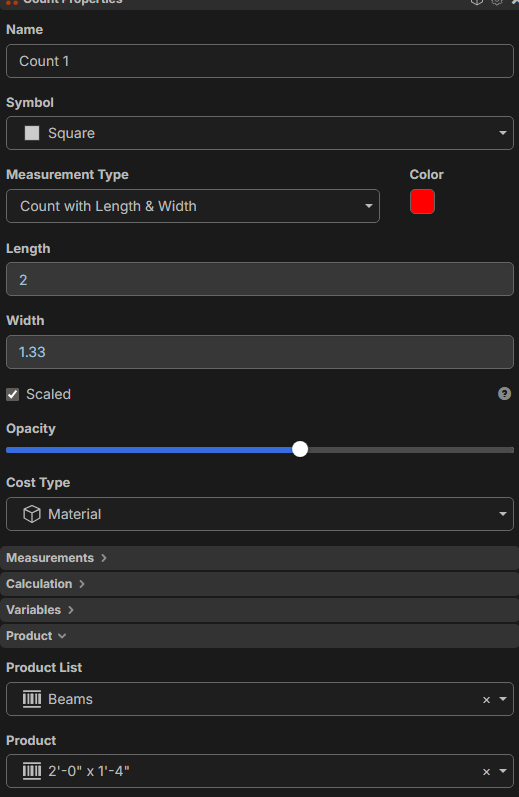
Once you have the Count saved as a tool, it would become less of work. But yes, the initial setup will take a bit of work.
Sorry I took over this thread. 🤣
@Jeffery,
Going back to what you asked, this is how I make Folders using the Schedule Extractor
Use the extractor as intended
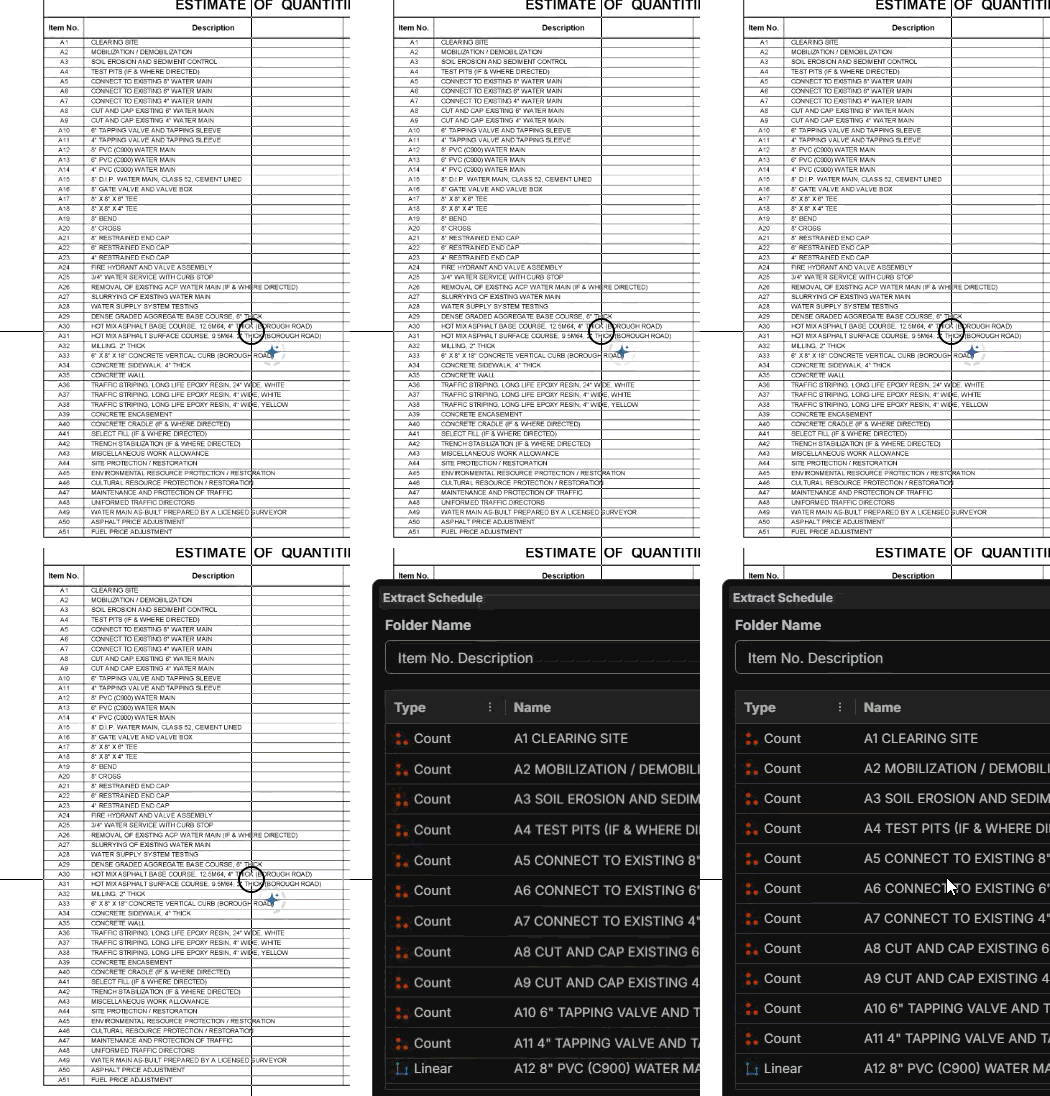
When it's complete, Highlight the names and use the CTRL+C for coping them. (Right click copy doesn't work for some reason.)
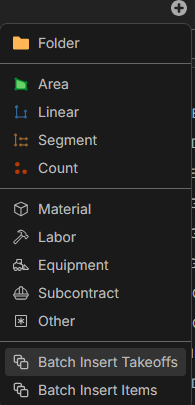
Then go to the batch insert tool on the Takeoff tab,
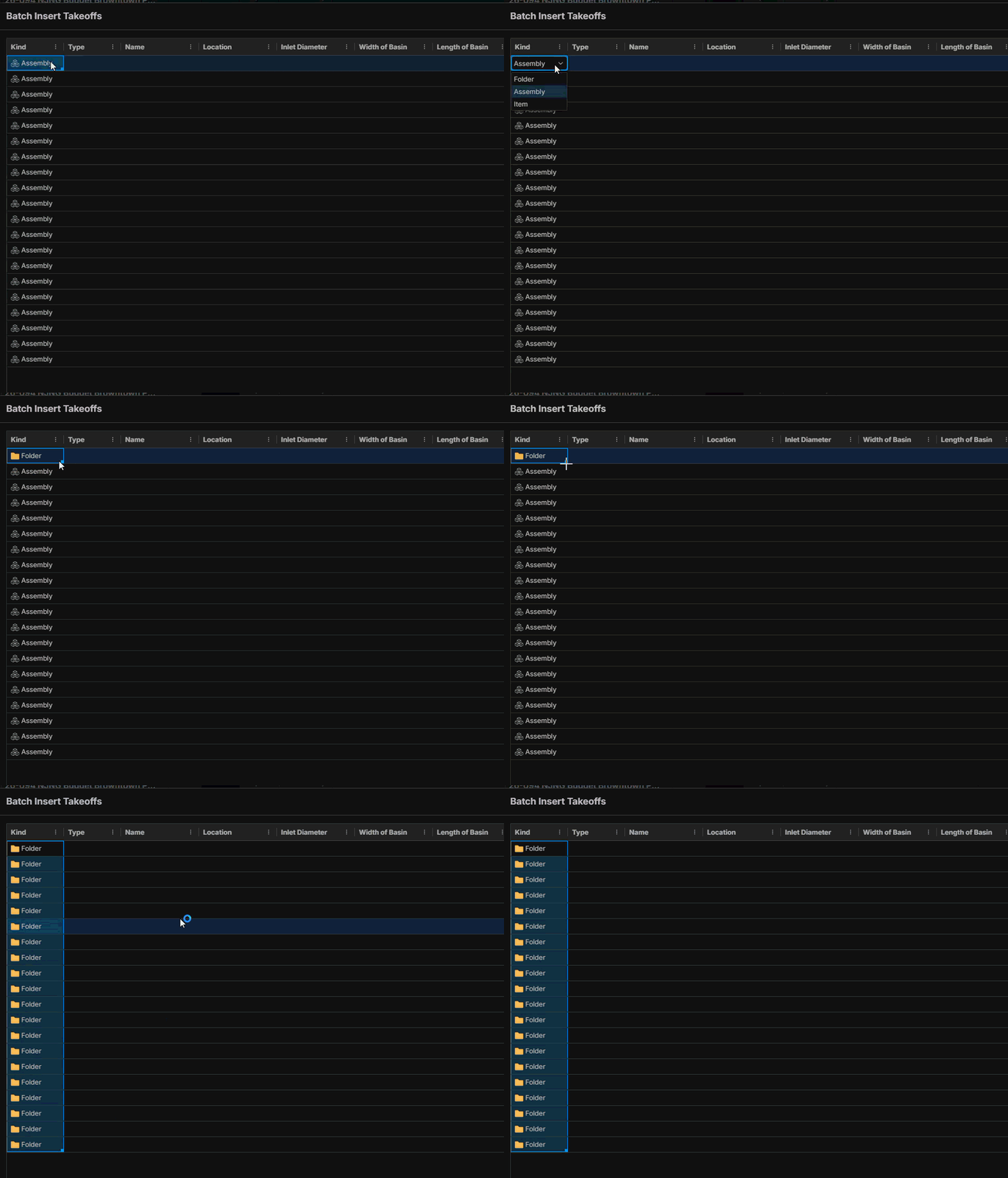
Change all the Kinds to folders,
in the name section, Paste (CTRL+V) the names you copied and click "Add Takeoff".
you may need to scroll down and change more of the kind column to Folders.
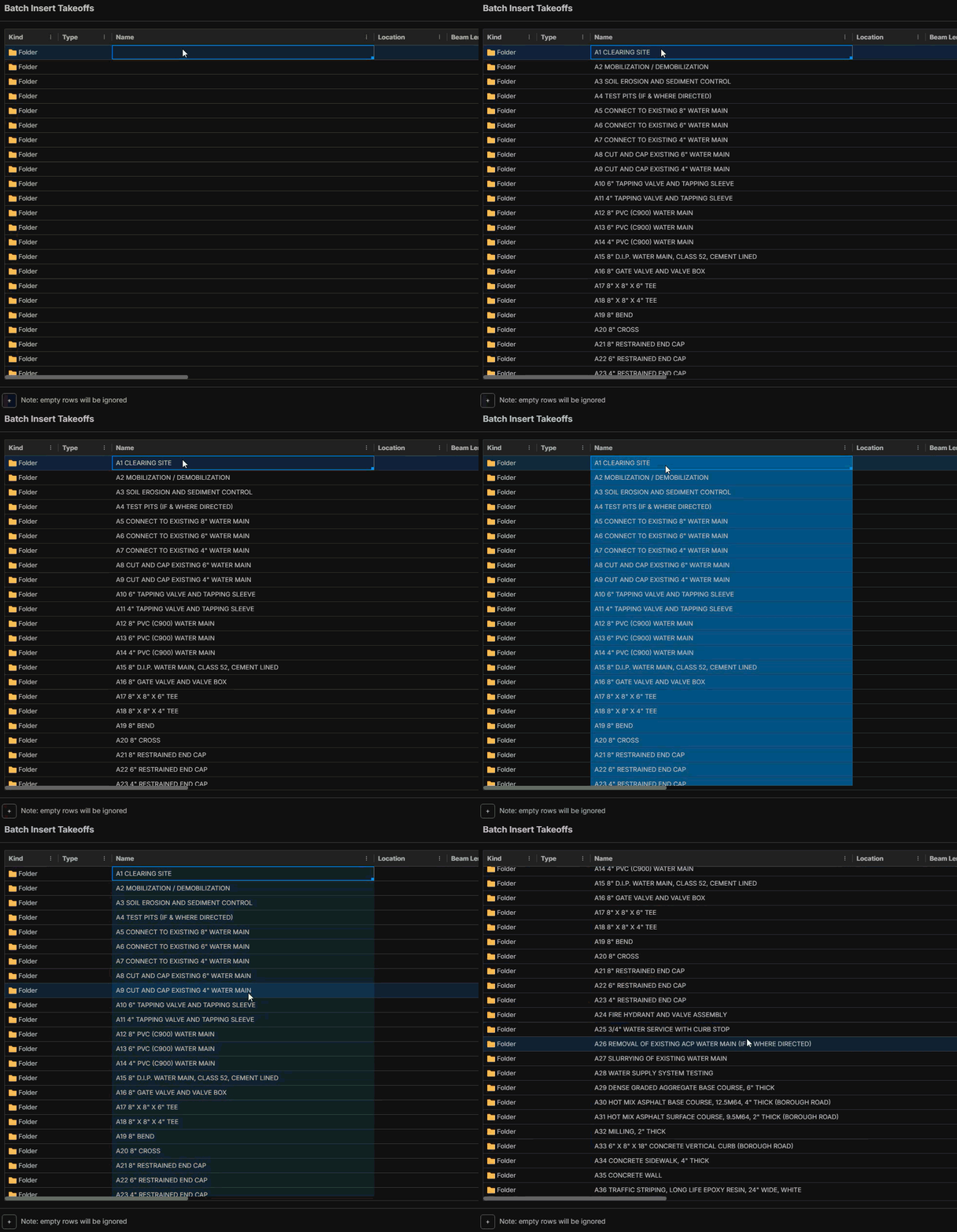
And it will add them all as folders to your takeoff.
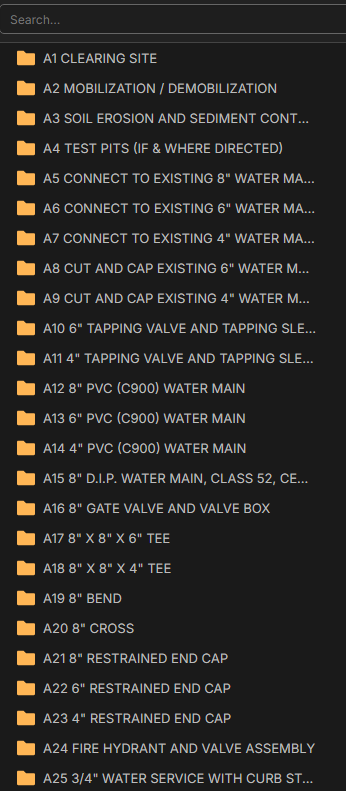
You can do all this while the extractor window is open as well in case the copy didn't come over. Just make sure you exit the Schedule extractor, so you don't end up with a bunch of takeoff items.
But yes, If the Schedule extractor had the ability to make folders, it would remove a lot of steps.
On second thought, I completely misunderstood your question.
I believe he wants to generate a bunch of items straight off the extract schedule tool using data from certain columns (which he chooses) shown on that schedule. It's more advanced than what I'm looking for, but it's the same concept of being able to instruct the tool what it pulls off a schedule, and what to map those figures to (takeoff dimensions, items, lists, custom properties, etc)
I agree, This had nothing to do with creating folders.
I'm not sure that the batch insert is what I want and seems like a lot of work to do what I thought the extract schedule did. It look likes no matter what when using the extract schedule feature it only sees 2 columns, if you select the entire schedule it will take the first column no problem but then the second column becomes a combination of all of the rest of the columns. What I am trying to do is to create my takeoff items from that schedule with select info from certain columns, and then have the option for the takeoff Items to be added to a folder if one exist, otherwise it can create them as it does normally outside of a folder, is this making sense of what I'm trying to explain?
Are you looking for a way to have the tool create these straight off the specific columns you select from the schedule, and/or map them to your existing ones (even your templates), similar to the Duplicate As feature?
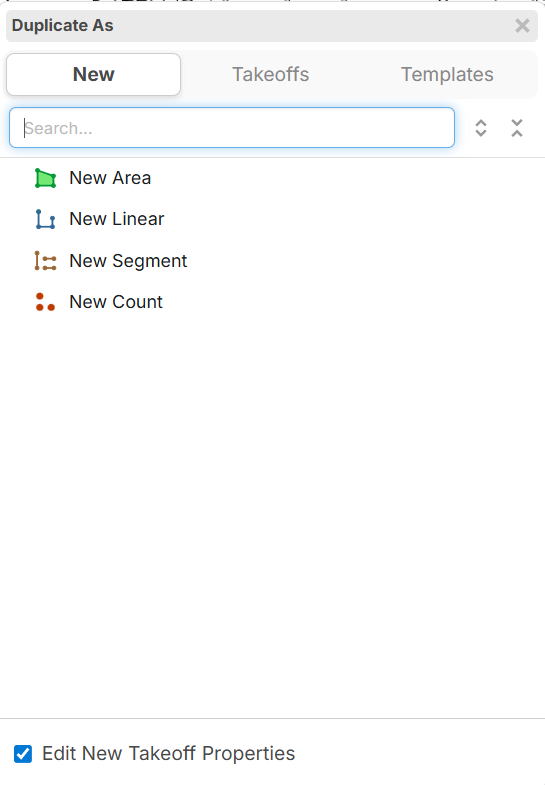
Not really, I just want to create takeoff items from the schedule and save time from having to type everything.
Having the Extract tool Pull in a bunch of rows and map them to takeoff items is going to be a huge undertaking.
No thats not what I want either. I just want it to be able to know there are more than 2 columns, is that all we are allowed to select, it seems it only picks up 2 columns? And then what I want is to select certain columns that end up creating the takeoff item name. Then once that is completed, just have the option to either create a folder or add them to an existing folder. I wish I could figure out how you guys do those video screen shots so I can show you what I'm looking at.
Snipping tool has a record screen option, what I do is record what I'm doing as a video then when it's done, there is an option to turn it into a GIF and upload it here.
It's tricky sometimes because you can only upload a short amount. sometimes i need to trim the video down just to upload it.
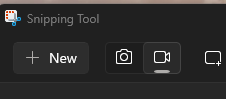
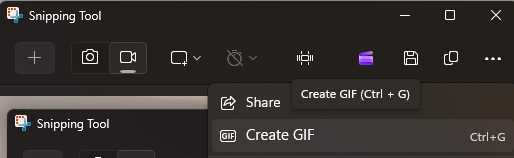
the other option is to create a YouTube account and record a video on there then upload the link.
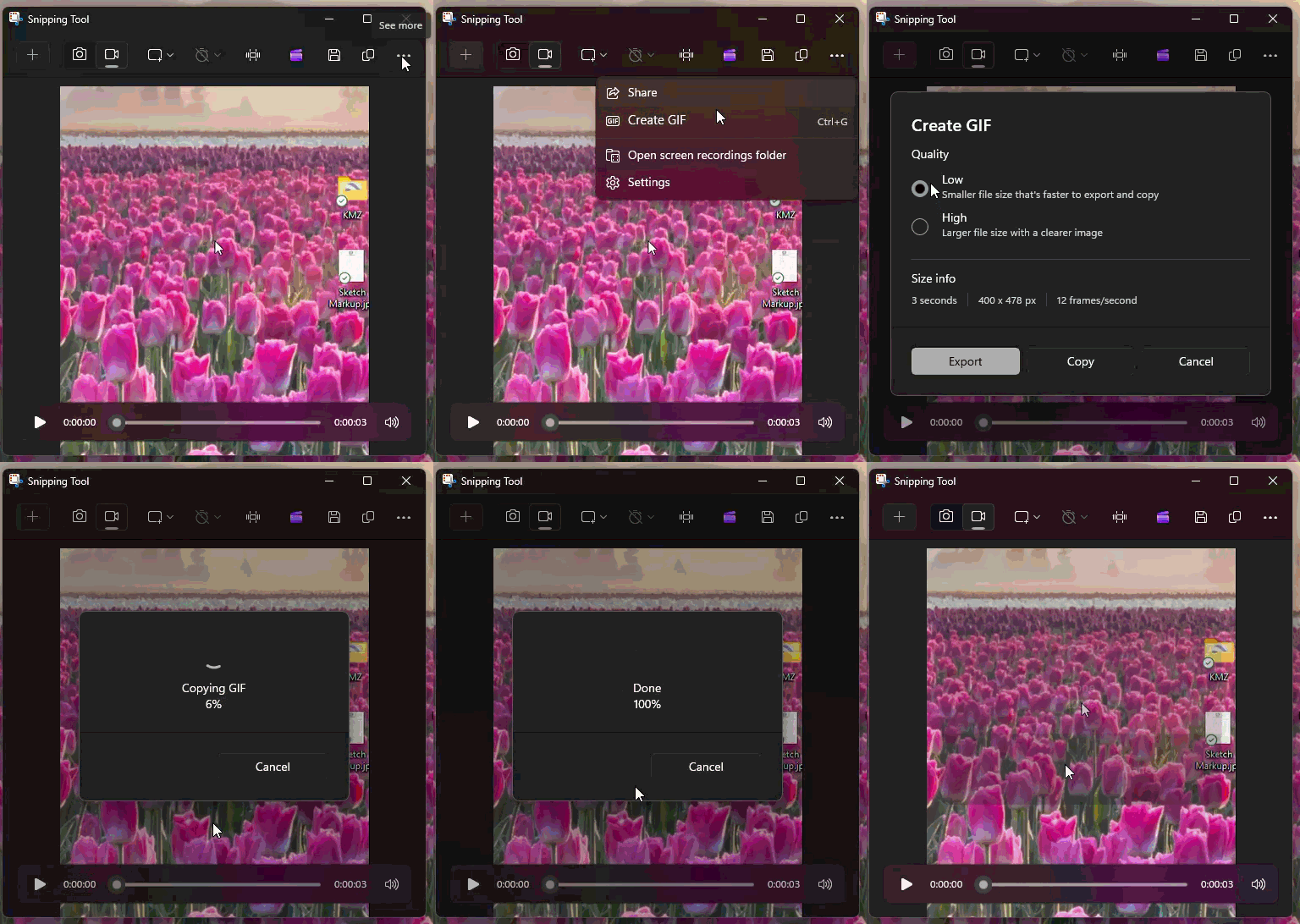
I just figured something out, If you save the GIF, you can use the button above to upload it.

Thanks for the feature request, I have shared it with the dev team!