










 Product Updates
New Update: Joist Tool, Beam Tool, Grid Tool, Section Level Properties (Zone WBS), Labels, Slice, Lasso, etc.
We deployed another update for zzTakeoff - May 2026 🙂🚀
Check out our videos for the new features:
- New Features - Highlights (2 min)
- New Features - Details (34 min)
Joist Tool
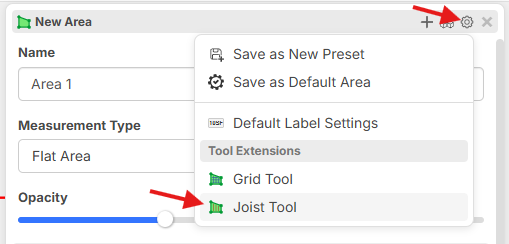
After starting an Area takeoff, you can enable it from the Properties popup using the settings gear, then click Joist Tool from the menu. You'll be presented with options for Material Size, Material Type, Spacing, etc.
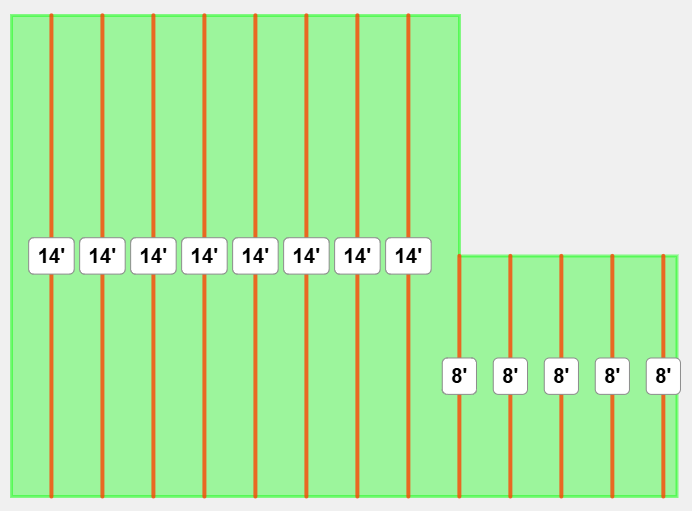
Then it will draw the joists based on the direction you choose:
Beam Tool
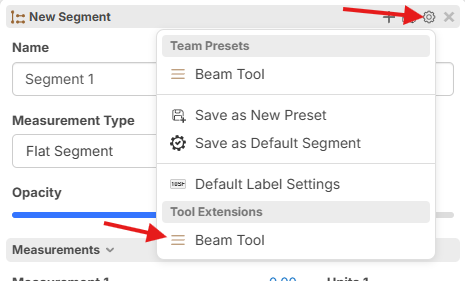
The beam tool has many options similar to Joist Tool. Activate by starting a Segment takeoff, click the gear icon, and choose Beam Tool.
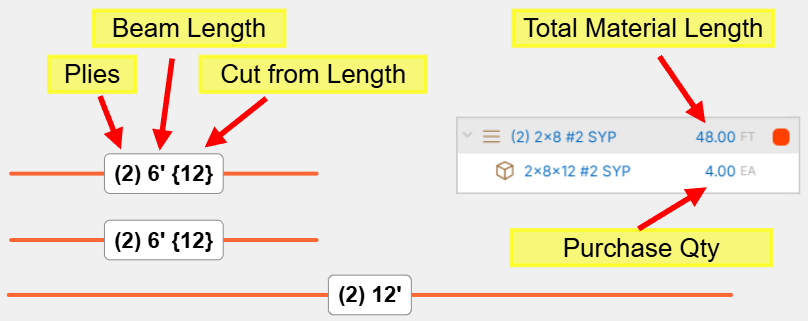
It can auto extend your lines for bearing based on a Bearing distance. You can also select specific joists and set them to be cut from a specific length of material and have the items calculate accordingly:
Grid Tool
Great for rebar grids, T-Bar, and many other grid scenarios. To activate this, create an Area takeoff, go to Properties, click the Gear, then switch it to Grid Tool.
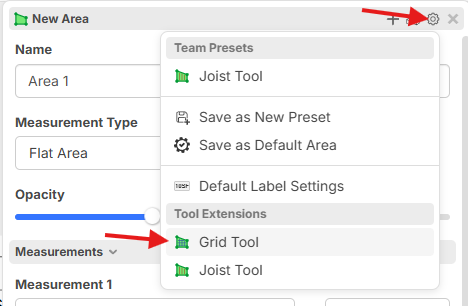
You will have various options to adjust Vertical and Horizontal line spacing, counts at intersections, and much more.
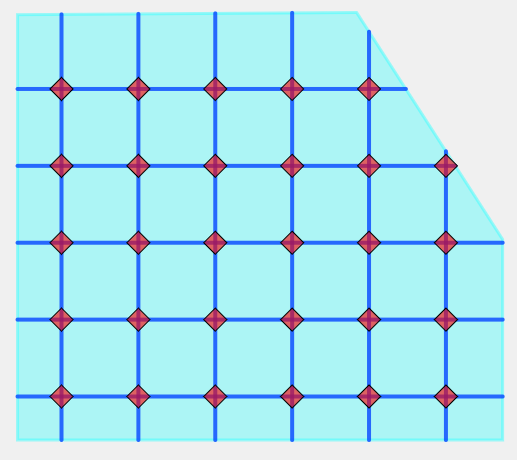
Labels
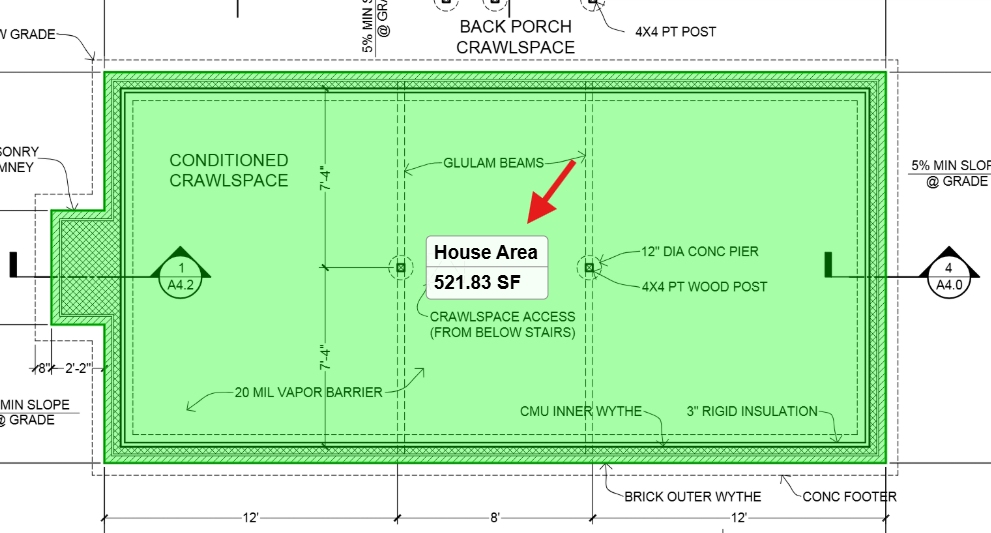
You can now right click on an area section (or linear, etc.) and click Show Label. The labels are customizable. You can customize and save label styles directly to your templates. Each template can have its own custom label style if needed. Labels have lots of options and can even include formulas.
Default Area Label:
You can create customized labels to show additional properties such as depth, slope, and even items within that specific section.
Note: if you apply material & labor items at the takeoff level, it will split up how much of those items apply to each section.
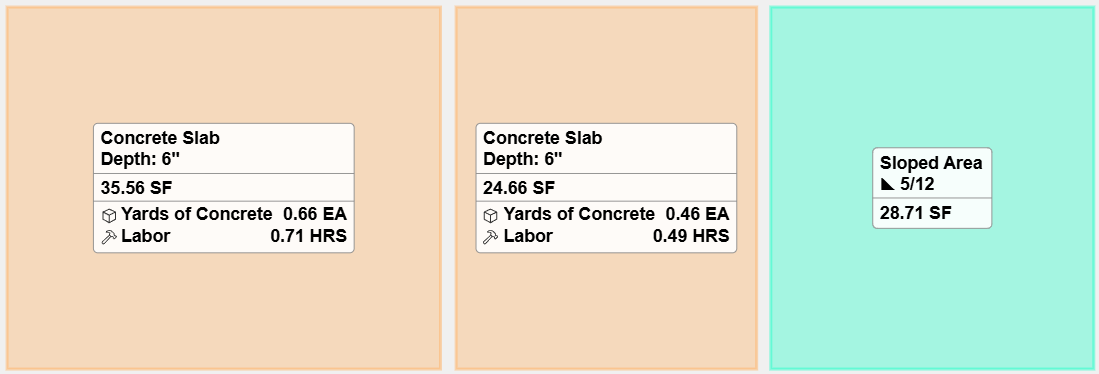
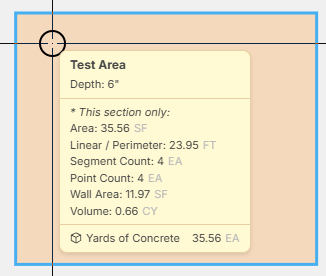
When hovering your mouse over takeoff sections on the page, you also see additional details such as depth, slope, and items.
Slice Command
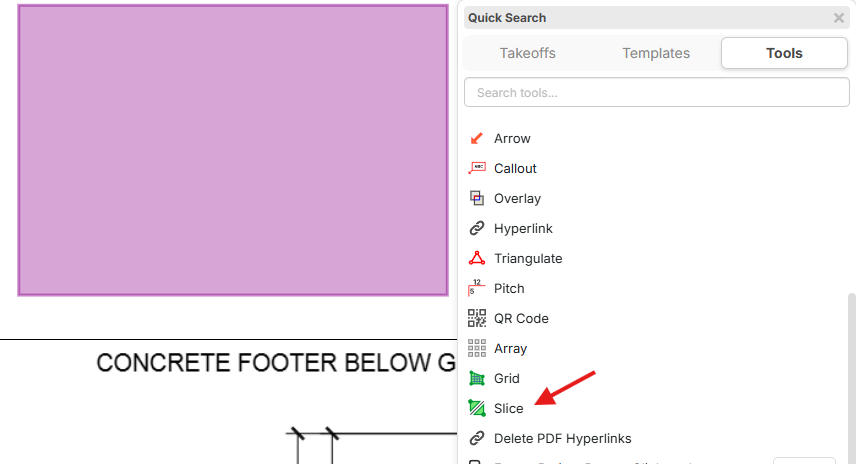
Now you can slice area or linear takeoffs. Press the / hotkey for tools, and find Slice near the bottom of the list.
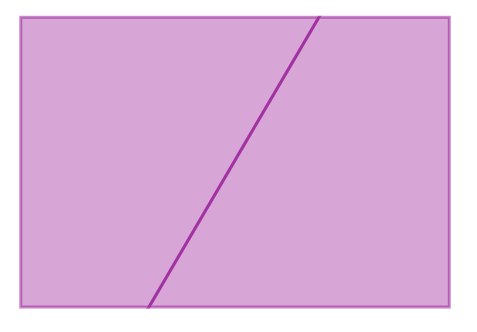
You will be prompted to draw the slice line (which can be a polyline). After drawing a line through the area, now it is sliced into 2 separate sections:
Symbol Text on Count Takeoffs
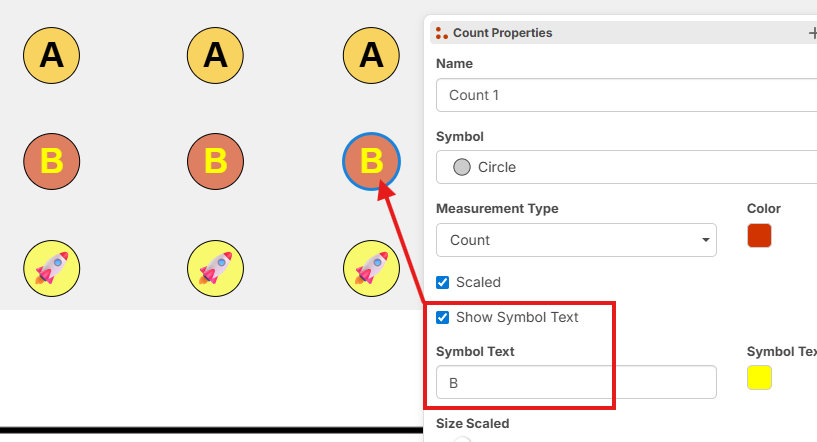
Now it's much easier to create unique count symbols with custom symbol text (with text color also). Lots of possible combinations now. You can even use Emojis (if you have hundreds or thousands of counts on a page you may want to avoid emojis since they take longer for the browser to render if there are a lot, although they are fun). In the future, you will be able to upload custom SVG images or draw an area and convert that into a symbol.
Lasso Selection
If you hold Alt before clicking to drag, it will start a selection lasso. To start the lasso, be sure you're holding Alt and clicking on the page image (not on any objects on the page).
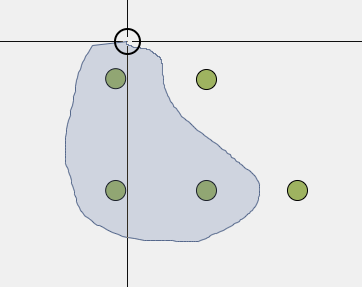
Search / Create Count Takeoffs
In the search popup, if you want to turn the results into a count takeoff, just check the boxes for the individual results, and click Create. You will get a popup to create a count takeoff, area takeoff, or highlight.
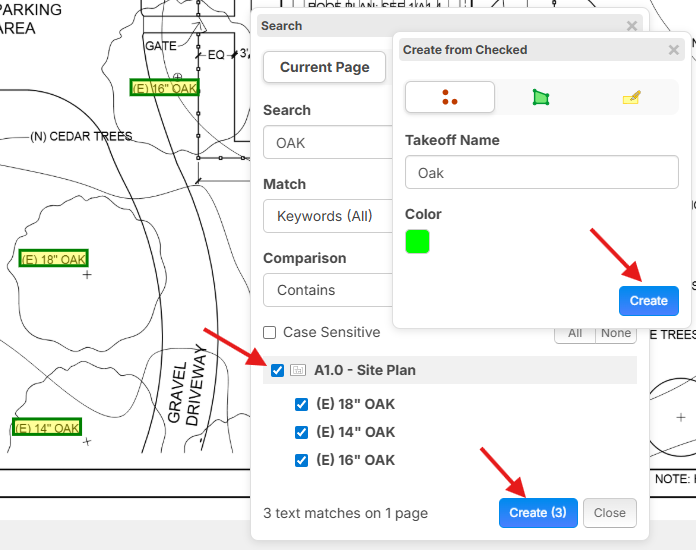
Custom Legend Column Headers
If you open properties on your legend you can check the box for Custom Column Headers. After changing the values, if you want you can click the gear and Save as Default.
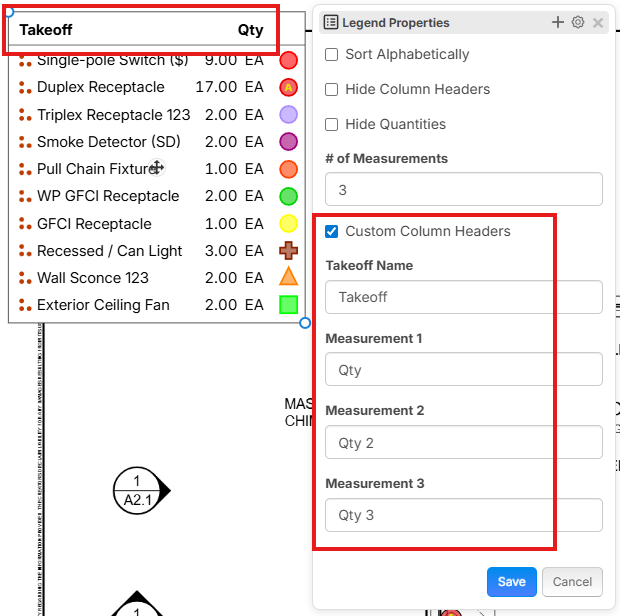
Convert To... (in pages sidebar and in right sidebar)
Now you can convert all sections of a takeoff into another takeoff or template.
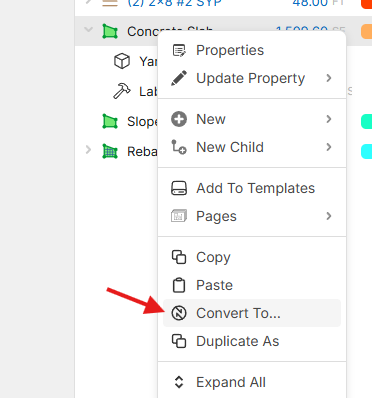
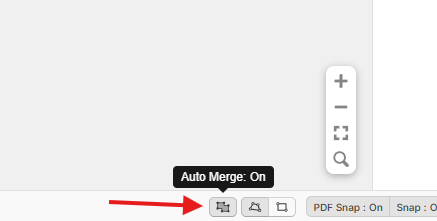
Box Mode - Auto Merge Toggle
When drawing in box mode, you now have the ability to toggle whether you want areas drawn to auto merge:
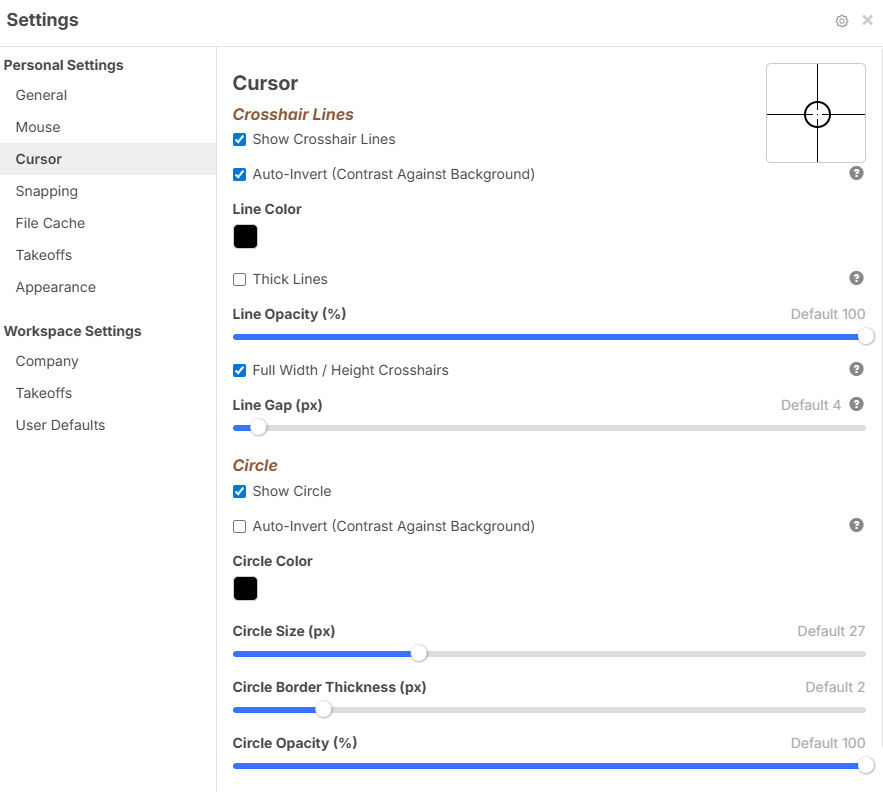
Mouse Cursor Settings
Now you can adjust the appearance of the mouse cursor and crosshairs in settings.
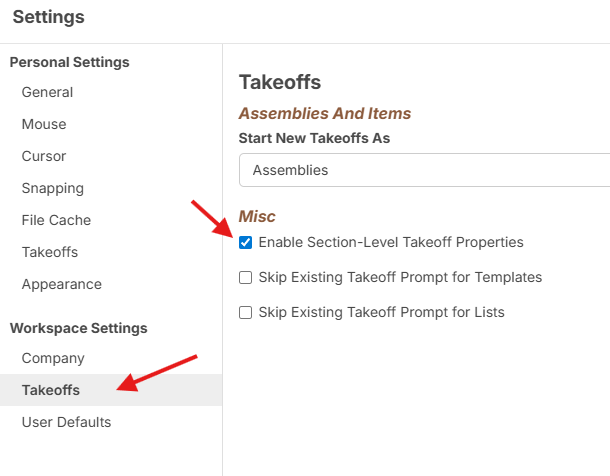
Section Level Properties / Zones & WBS
Sometimes you need to tag specific WBS data at the Section Level so you can group properly in reports. You can enable section level properties in settings:
When right clicking on a specific takeoff section, you now have Section Properties available (Shift + F2 hotkey).
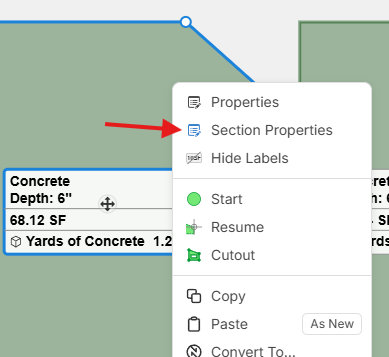
Note: the Section Properties popup has this blue styling to help visually distinguish it from the regular Properties popup.
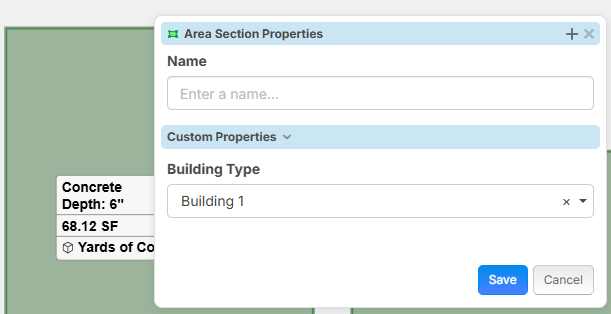
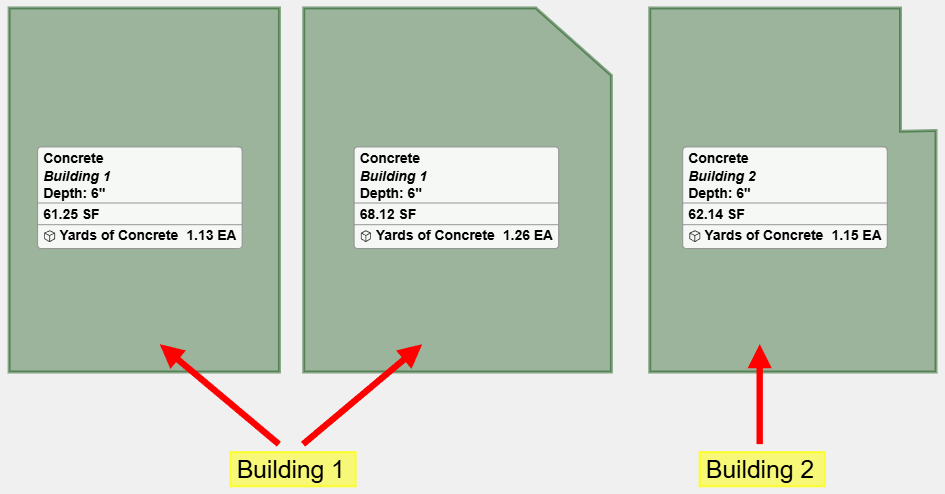
You can apply separate WBS properties per section:
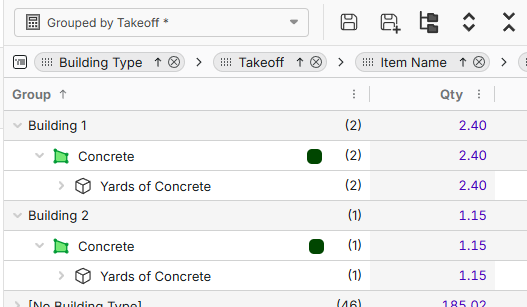
In reports, you can now get a breakdown of the takeoff measurements by Building Type or any other WBS property.
Formula Engine - Calculation Sequence
Now you can decide whether your formulas to calculate at the Takeoff Level or at the Section Level. For example, suppose we have a "Linear" takeoff that is made up of 2 sections on the page. I have configured the "Round Up to Nearest" to 2. With current default behavior (Takeoff Level). The Test Item will first total up the lengths of all the sections to 11.5, and then round up to the nearest 2 which is 12.

If I change the formula to calculate at the Section Level, you can see that it will run the formula separately per section (4.5 would round up to 6, and 7 would round up to 8), then they and then total up to 14 for the total. This is great for rounding material lengths such as beams, pipes, etc.

Clipboard API / File API
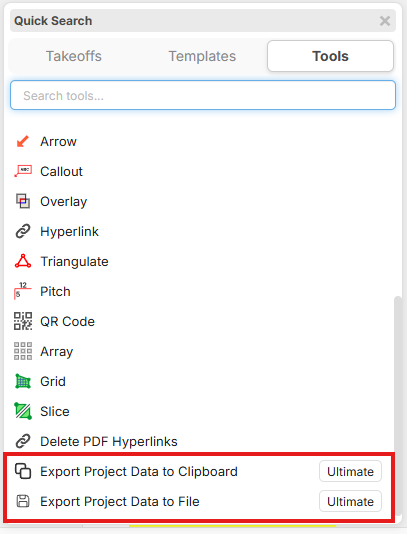
Need to export your data quickly and easily to other apps? Press the / hotkey and choose Export Project Data to Clipboard or Export Project Data to File.
We have a preview feature that will be available in our Ultimate version that will also export point data.
Here is a custom estimate in Google Sheets that was created using the data from zzTakeoff Clipboard API or File API:
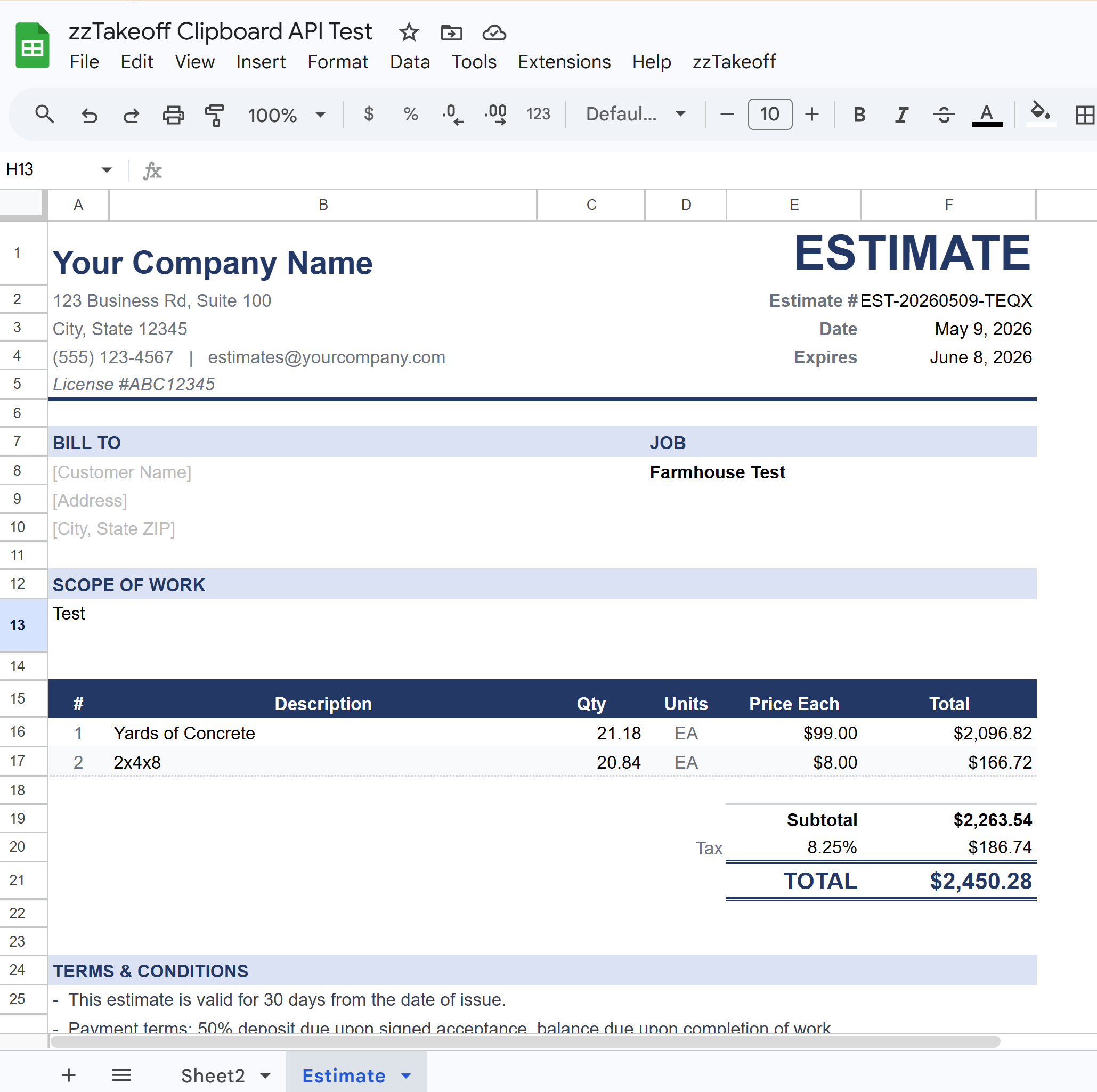
zzTakeoff Ultimate Preview
Using Claude or other AI tools you can easily extract this data for custom reports and additional takeoff tools. This is the beginning of a huge area of future expansion for Plugins (we're working on a Plugin Store).
Here is a preview of an Earthwork Tool we are working on for our zzTakeoff Ultimate users (soon to be launched).
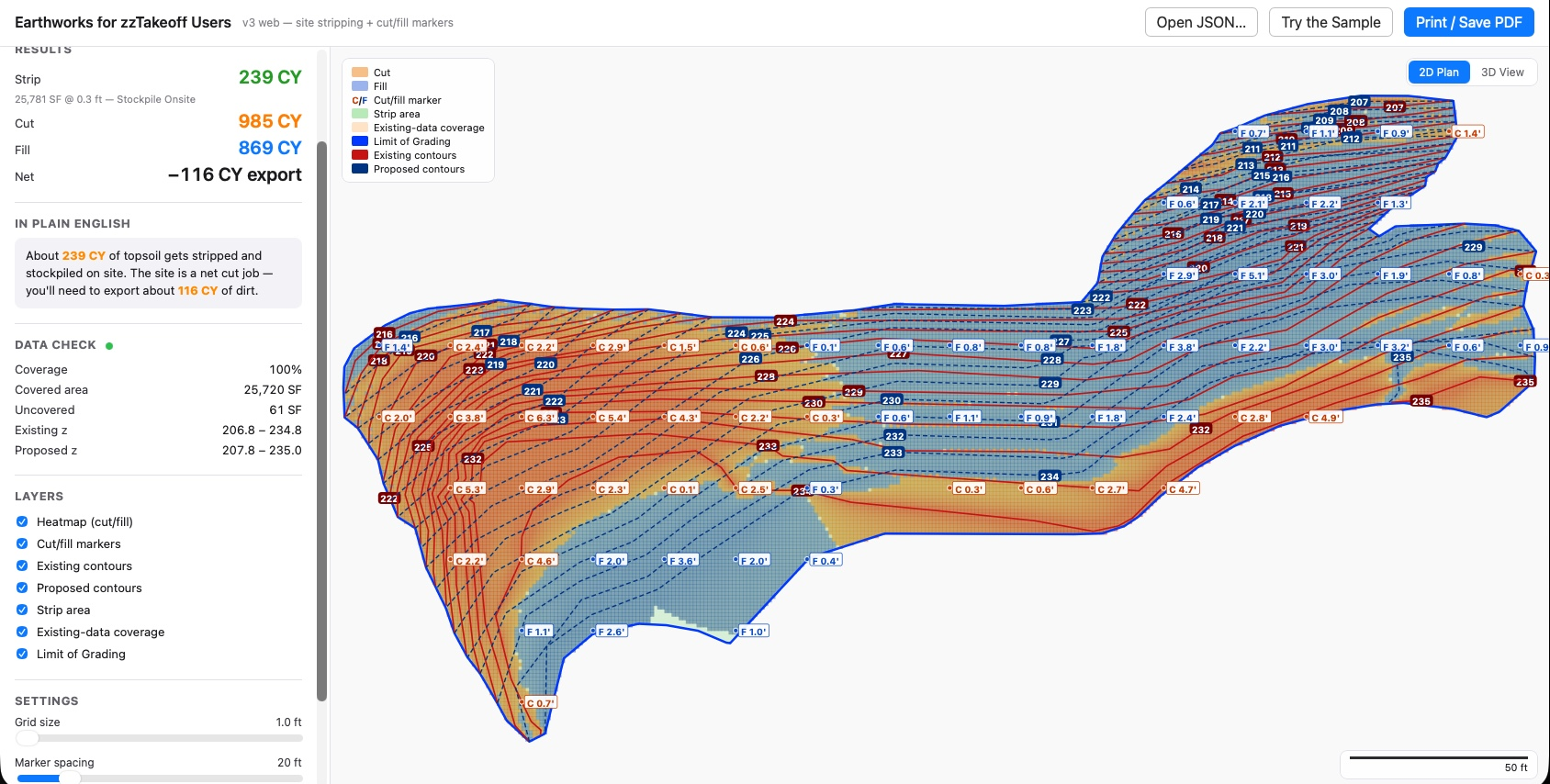
Earthwork 3D View (zzTakeoff Ultimate):
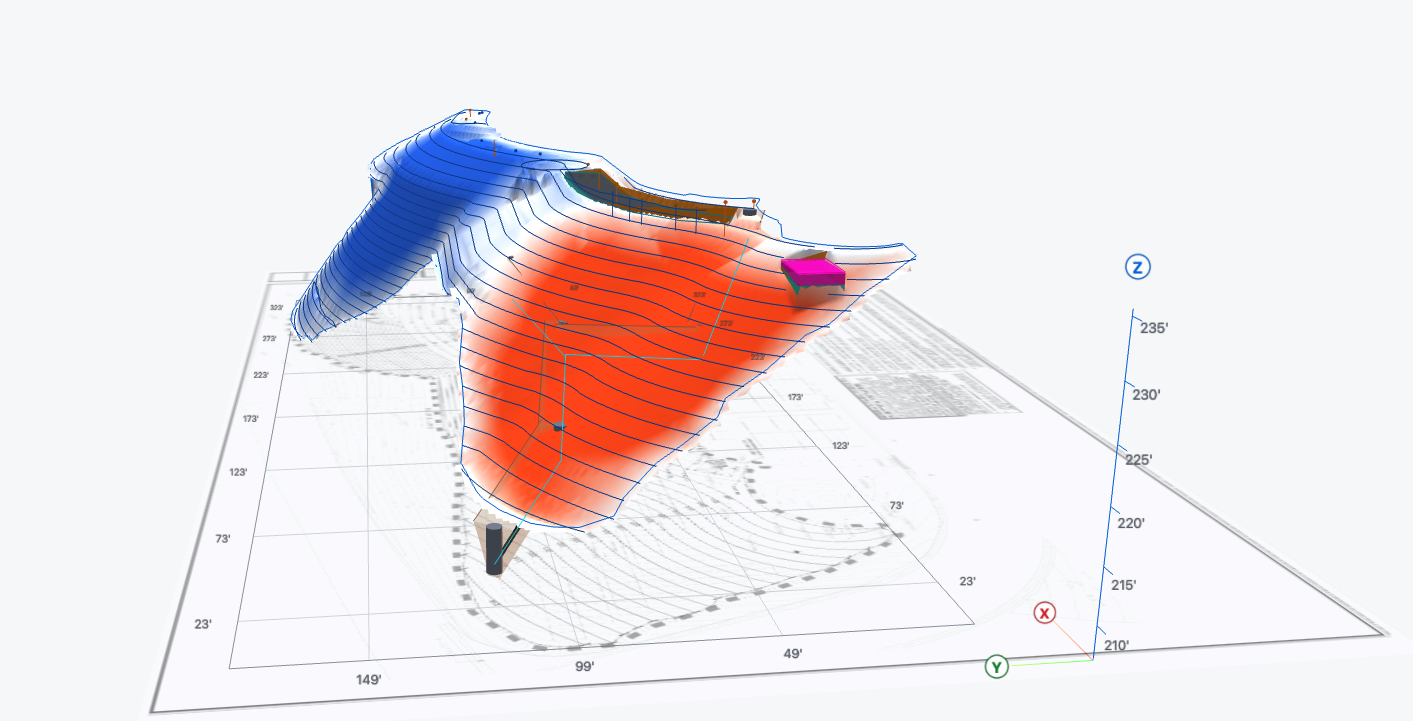
3D Roof Render Plugin (zzTakeoff Ultimate):
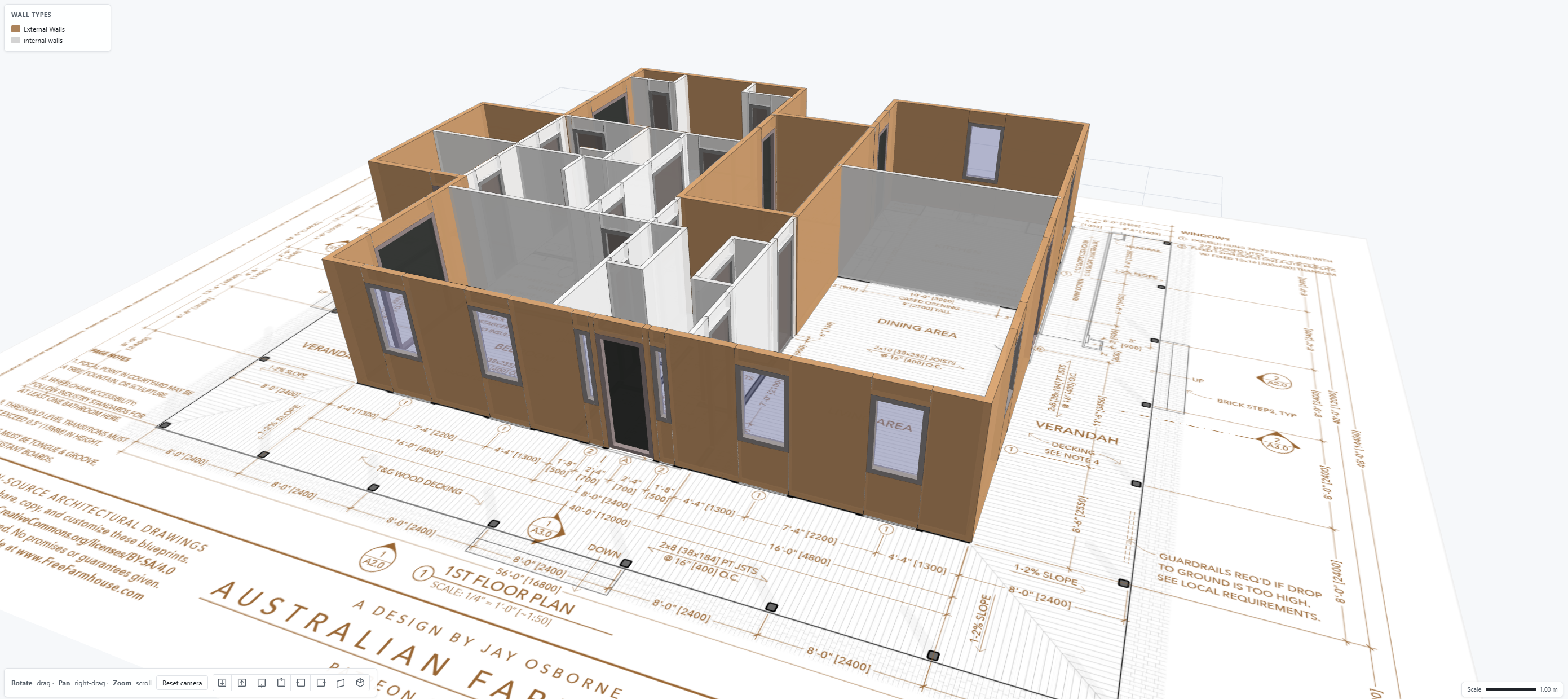
3D Wall Renderings Plugin (zzTakeoff Ultimate):
Misc Updates
- Custom Properties - moved out of settings into its own full page for more screen real estate
- Selecting takeoffs in pages sidebar or takeoffs sidebar will select all objects on the page for selected takeoffs
- When drawing a cutout for an area, if it exceeds the bounds of the original area, it will just chop the original area instead of creating a cutout
- Sloped from Elevation View measurement types on Linear, Segment, and Dimension tools
- Reports - many additional properties available such as "Text" for note annotations, etc.
- Unsaved prompt if you try to close properties popup after making changes
- Various bug fixes
- Various speed improvements
Thank you all for your support and feedback to help us make zzTakeoff better 👍🏻🙂🚀

How do we gain access to zzTakeoff Ultimate? Very interested in the earthworks tool!
👍9🤔1%22%2F%3E%3Ctext%20x%3D%2232%22%20y%3D%2233%22%20text-anchor%3D%22middle%22%20dominant-baseline%3D%22central%22%20font-family%3D%22Arial%2C%20sans-serif%22%20font-size%3D%2226%22%20font-weight%3D%22600%22%20fill%3D%22%23fff%22%3EKP%3C%2Ftext%3E%3C%2Fsvg%3E "Kory Podgaysky")

Super superb !!! Thank you Zz. Don't forget to keep prices extremely reasonable. We don't want silent partners (IRS + Zz). 😁
👍5💯4🚀2😂6
You killed my number 1 priority of making count symbols with rockets, so thank you for that!
Now our number one priority is getting a MCP setup with the Neuron Factory! MCP, MCP, MCP. ( @Heber I need to make a intro with you and that team, will send now)


OUTSTANDING!!! Looking forward to the earthwork plugin. Is any of this available in the beta program?
👍5%22%2F%3E%3Ctext%20x%3D%2232%22%20y%3D%2233%22%20text-anchor%3D%22middle%22%20dominant-baseline%3D%22central%22%20font-family%3D%22Arial%2C%20sans-serif%22%20font-size%3D%2226%22%20font-weight%3D%22600%22%20fill%3D%22%23fff%22%3EJK%3C%2Ftext%3E%3C%2Fsvg%3E "Jared Koester")
Can you define "soon" on the earthwork tool? Also would like to be considered for beta.
👍5

%22%2F%3E%3Ctext%20x%3D%2232%22%20y%3D%2233%22%20text-anchor%3D%22middle%22%20dominant-baseline%3D%22central%22%20font-family%3D%22Arial%2C%20sans-serif%22%20font-size%3D%2226%22%20font-weight%3D%22600%22%20fill%3D%22%23fff%22%3EGB%3C%2Ftext%3E%3C%2Fsvg%3E "Geoff Van Brunt")

I'm totally beyond excited for so many awesome updates. I've already been able to bring a few of these into operations SAME DAY!
I'm curious if there's documentation on how we can currently work with copy/pasting data points and pasting into other tools for visual XYZ rendering of shapes?
I would assume the XY coordinates are built into the schema but curious how to ensure the Z is elevation is accounted for? Is that a custom property or variable?
👍1
Hi Chaz, yes it is a custom property that you would have to build into ZZ. I have had some progress and some of our team mates have built some pretty cool 3D models,
Chat in if you want to see some behind the scenes action
👍3