










 Inside Track
Ready to Test: Hyperlinks, Imperial + Metric Scales, Gray Folders in Pages & Project, Auto Box Mode for Linear, etc.
We have some New Features on Test Server.
Hyperlink Tool
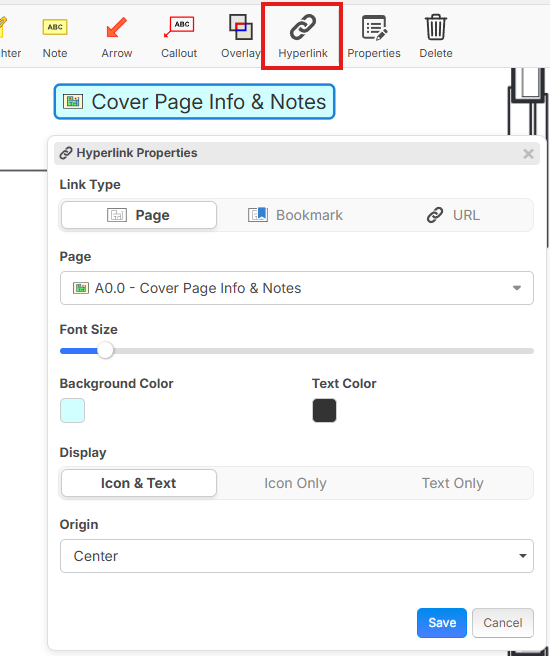
You can add hyperlinks to your pages with the ability to link to a Page, Bookmark, or External URL. You can also drag & drop a page or bookmark from the left sidebar onto the page to auto create a hyperlink on the page.
Imperial and Metric Scales in the Same Project
For example, you can scale in Metric and draw an area and get SF output. You can also use [Area:SF] and [Area:M²] in formulas regardless of which measurement system was used and it will auto convert.
We're also experimenting with Metric scale indicator showing in blue to help distinguish. We're open to feedback on this.

Revision Plan Set
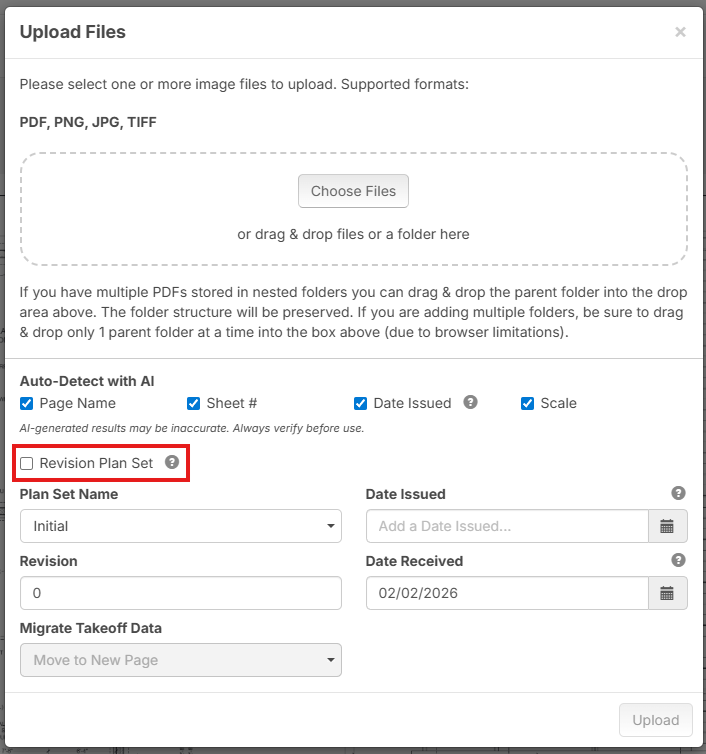
Due to some confusion with plan versioning, it will not try to match new versions of pages to old versions of pages (and move takeoff data), unless the user checks the "Revision Plan Set" checkbox:
Page Size Override
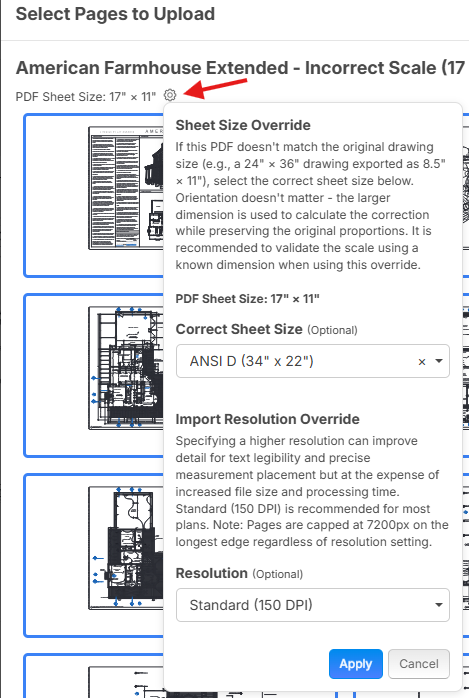
When uploading PDF files, you can now see the detected page size and click the gear to override that page size. For example, if you're importing plans that got downsized to 11"x8.5" or similar, you can now upsize them to proper size such as Arch D 36"x24". You have better control over DPI settings. This will help with some pages coming in blurry due to the PDF page size being too small.
Hotkey List - Updated & Searchable
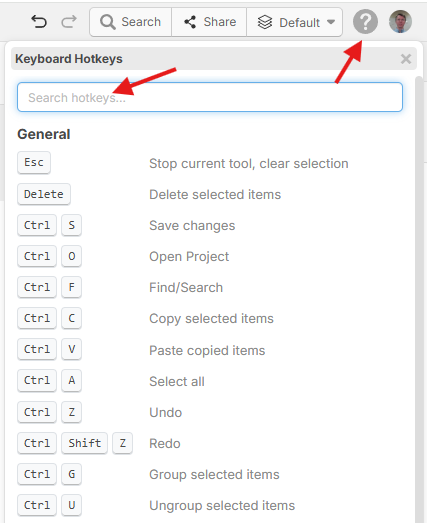
More up to date and easier to use.
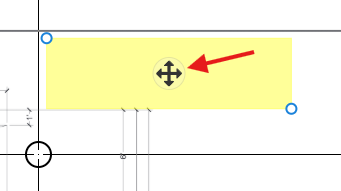
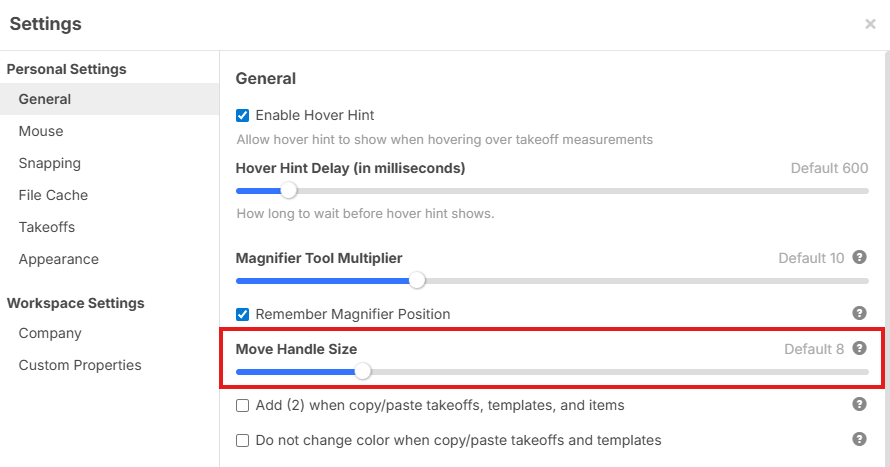
Setting for Move Handle Size
You can make it much bigger if you wish.
Location of move handle size setting:
Remember which Layer was Last Opened
Now when you re-open a project, it will automatically go to the layer you last had opened. This should help avoid users getting confused by the software opening the "Default" layer when a project first opens (if the user is not using that layer for their takeoffs).

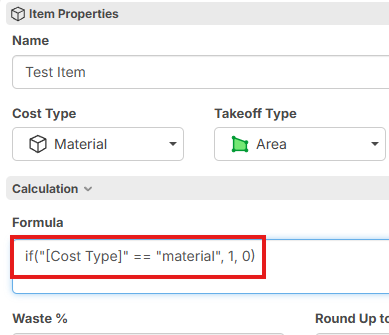
Text Comparisons in Formulas
Previously the formulas could only compare numbers.
Example: "[Cost Type]" == "material" will now be true if you're on a Material Item. Lots of expanded uses in formulas now. This is a simple example, but more useful when you use with WBS properties, etc.
Human Verified Scale Indicator
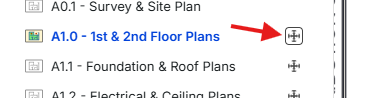
You can click the scale icon to get an option to verify the scale (which is often set by AI, but many users want a way to know if a human has double checked the scale).

It will show the border around the scale icon if it has been human verified:
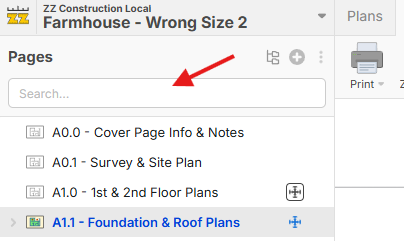
Search Visible by Default
In the sidebars for Pages, Takeoffs, & Templates (as well as Open Project popup), the search (previously more condensed by default) is now visible by default.
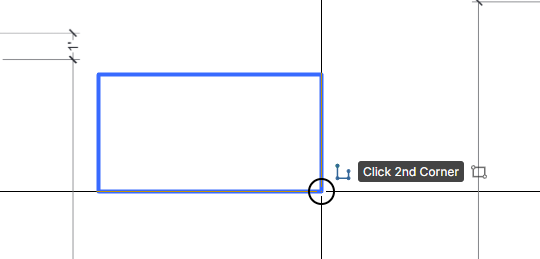
Auto Box Mode for Linear
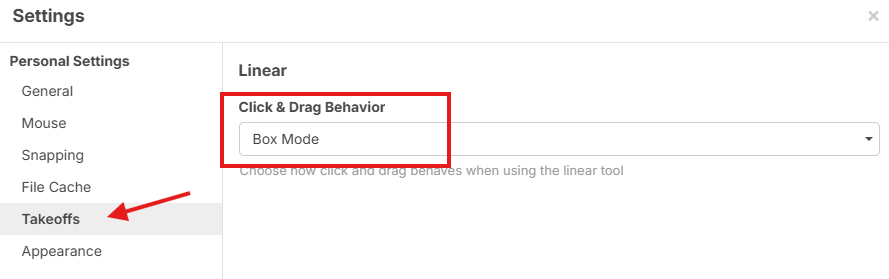
Some users were requesting click & drag for automatic box mode on linear. Some users prefer click & drag to draw individual segments, so this is a setting.
Setting location for Auto Box Mode on Linear
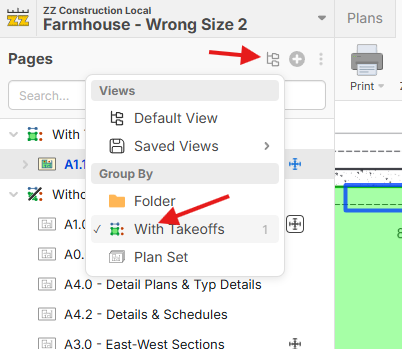
Pages - Group by "With Takeoffs" or "Without Takeoffs"
Many users were requesting the ability to have pages with takeoffs at the top. Now it's easy. This is the beginning of gray folders for pages (custom page properties coming soon).
Gray Folder Grouping in Projects
Now you have more control over your view in the Open Project popup.
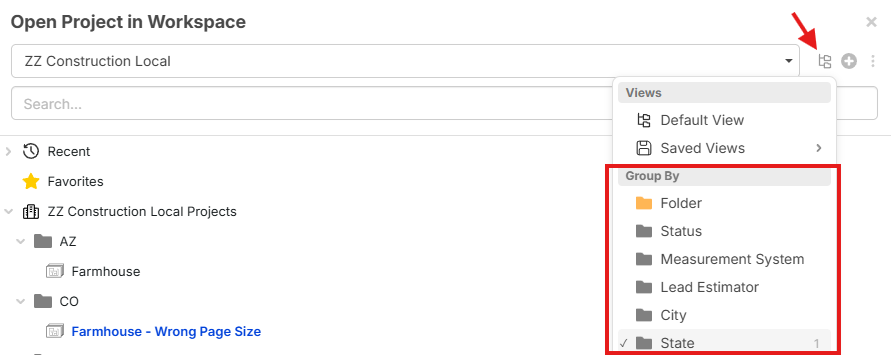
Gray Folder Grouping to Match Takeoffs Sidebar
If you group your takeoffs by specific properties in the right sidebar, you can now make the left sidebar match.
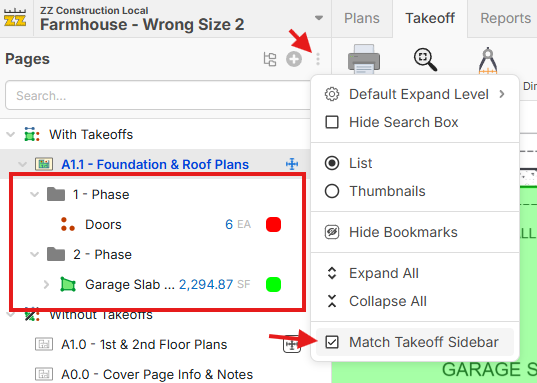
Misc. Updates
- Users Can "Remove" themselves from a workspace with the "Leave" button (previously had to be removed by an administrator)
- AI uses Higher Resolution when detecting page name, sheet #, scale, etc. Improved accuracy.
Bug Fixes
- Filter icon in report column headers now allows you to click to adjust or clear the filter
- "Convert To..." is now working properly in the "Paste" toolbar (visible after pasting objects)
- Manual Takeoff sections now filter properly when reports are filtered to a specific layer
- Dragging & dropping items to adjust parent/child relationship in "gray folders" is working properly now
We will release these once we have fully tested.
%22%2F%3E%3Ctext%20x%3D%2232%22%20y%3D%2233%22%20text-anchor%3D%22middle%22%20dominant-baseline%3D%22central%22%20font-family%3D%22Arial%2C%20sans-serif%22%20font-size%3D%2226%22%20font-weight%3D%22600%22%20fill%3D%22%23fff%22%3EJ%3C%2Ftext%3E%3C%2Fsvg%3E "Jes")

I'm loving the hyperlink tool so far.
A couple suggestions:
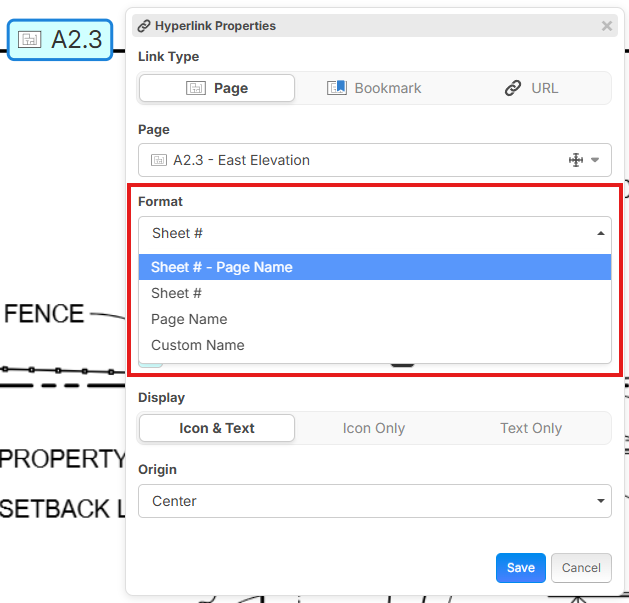
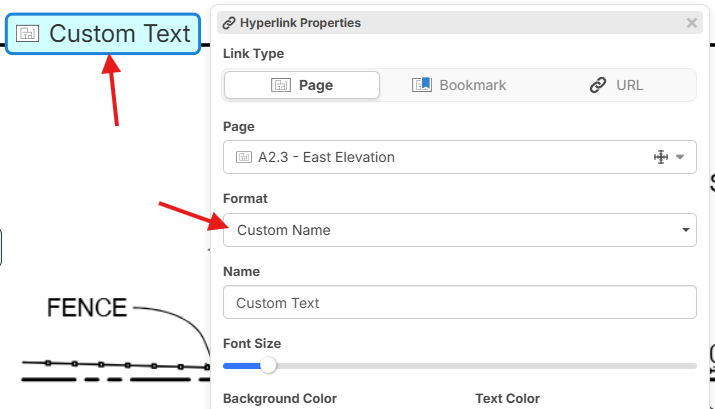
1) I'd like the option to choose the display text. Currently just defaults to the page name which takes up a lot of space if it's a long page name. The "Icon Only" is fine in some cases, but for others I'd like the option to insert a brief description to display.
2) Is it possible to add further functionality to the hyperlink so that it links to a specific region of a page? This would be extremely useful for linking to details. Ideally, we'd have the option to link not only to a page, but to select a region on the page to link to.
3) What would be super cool is if we could select text or "areas" on the drawing (a callout, note, or section symbol) and create a link from that! The color of the item (or item background) would change to indicate a hyperlink. I can see this developing with AI functionality in the future, so when you create a new project, it automatically creates the links.
Keep up the excellent work!
👍2
also would be very useful to make a check box to auto add a hyperlink back from where you came
👍2
@Shane
Great feedback.
For your point 2), you can link to bookmarks - so this will let you link to a particular "zoomed in" part of a page via a bookmark.
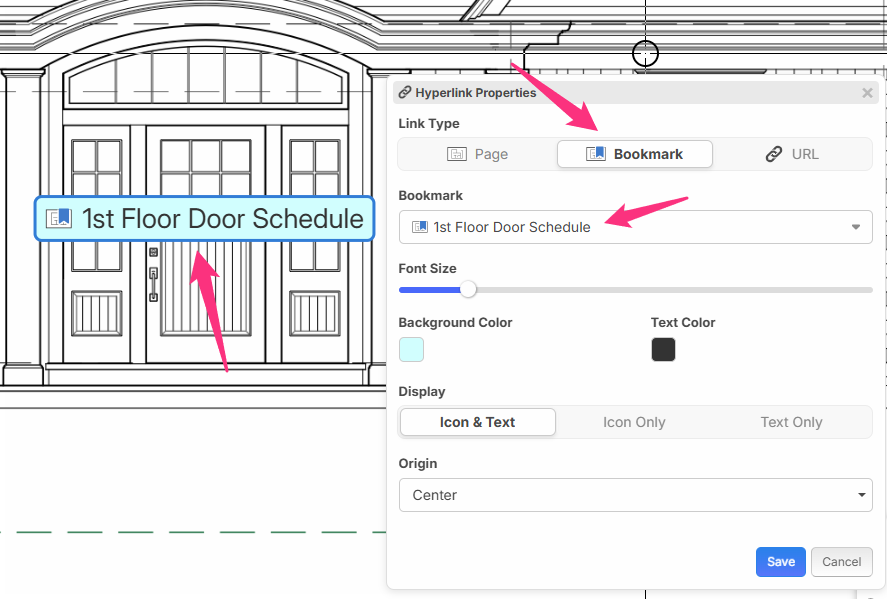
Thanks, James! That works. I'd like the option to "select page region", "bookmark from selection", and "bookmark page" when creating a new Bookmark if that's the way we're going with hyperlinks. Forgive me if it's already there and I just haven't found it.
Appreciate the help.
👍1
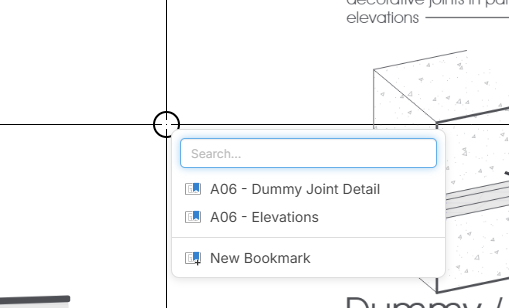
@Shane, if you select a section on the page, you can bookmark your selection with the "New Bookmark" from the smart select popup. You can also do CTRL + B to bookmark the current viewport.
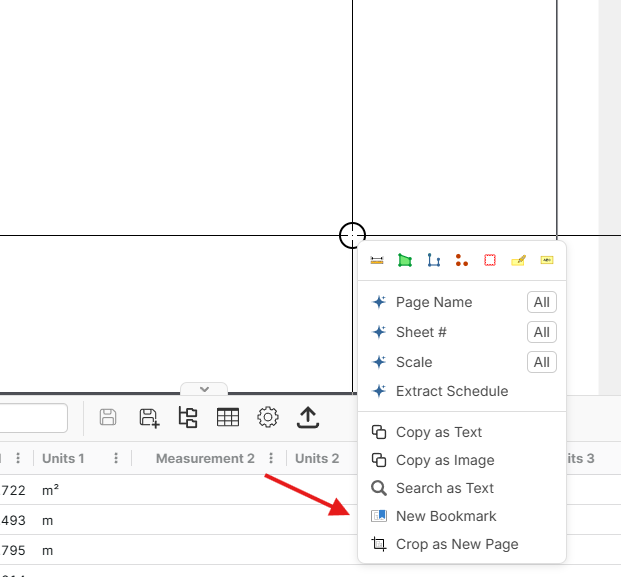
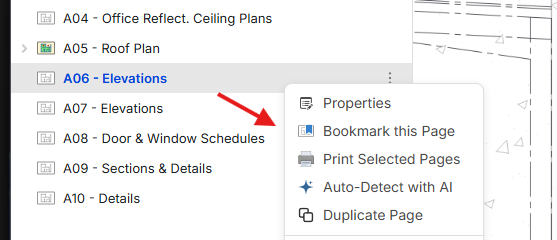
This one is more for convenience with the "B" hotkey to show bookmarks, but you can also right-click a page on the pages sidebar and bookmark it, then it will show in your bookmarks, and when you do "B" to quickly access bookmarks, or in the bookmarks sidebar.
Regarding #1, we have some hyperlink improvements coming soon to allow you to use a custom text.
#3 is also a planned feature 🙂
👍2
Collecting input: we're also adding the ability to make other objects (such as highlighter, arrow, cloud, etc.) work as a hyperlink.
In this example, it's in Right Click -> Properties with the rest of the properties. The Link Type, Page, and Open in New Tab only show up if the Hyperlink checkbox is checked.
Do you think it makes sense to have hyperlink properties on the same properties popup with the other properties, or removed and put on a completely separate popup accessible by Right Click -> Hyperlink.
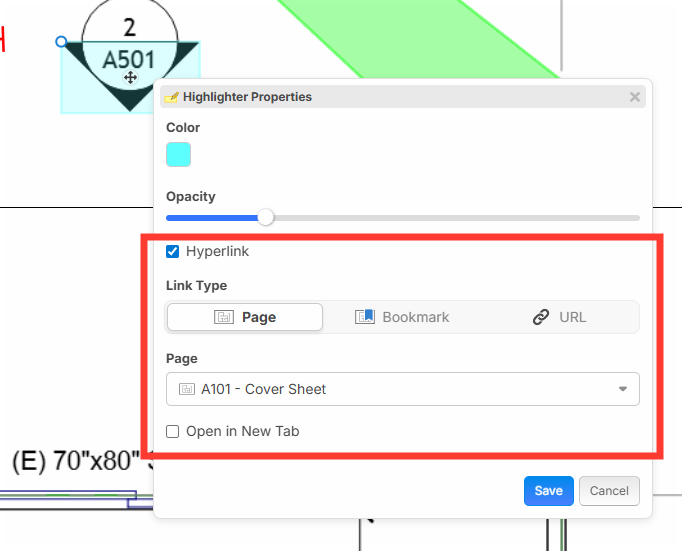

@ Heber 100% like that right in the highlighter. My one thought would be keep the notes field though in case someday we can filter by notes...but would not miss the notes field either.
Now since your working on this I really hope auto-hyperlinks are coming as a surprise soon! Was just manually linking cut sections today thinking I might need to fire up bluebeam to view faster.
👍3Makes sense to me. I like that.
Thanks for the input Kyle and Shane. Some PDF files already have hyperlink info available, but not all of them. For PDFs that have hyperlink data, we will be able to extract those pretty soon. For plans without, it will take us longer since we have to use AI, but we'll get there 🙂
Also, we are working on OCR of PDF pages that don't have text data built in, so search will get an upgrade soon, too. 👍🏻 Lots of good things coming step by step.
👍6🚀2🙏2
@Heber - I would look at the batch hyperlink tool that Bluebeam has, that is the functionality that most of us are looking for. I obviously don't know what the Bluebeam hyperlink engine is actually doing in the background, but I expect that once you generate the list of search terms it is just running a text search and adding the links to the sheets where it finds the associated search term. I don't think this requires a heavy use of AI or ML, your existing text search engine can probably be leveraged to build this tool.
👍6