







 Documentation
List of Current Hotkeys
C - Completes takeoff (same as escape)
A - Toggle Arc point - only if 1 point is selected
N - New section
T B L R - Align points in that direction (if you have 2 selected)
Backspace - Backout (Undo) last point clicked
Escape - Complete current takeoff
Arrow keys - Move the exact distance after initial click
To move a takeoff item(s) ALT +HOLD Left Mouse
Zoom In + Roll mouse wheel forward
Zoom out - Roll mouse wheel back
(AI) SmartSelect - Hold left mouse to focus AI over the printed scales, page names, create takeoff items , extract schedules, copy schedules to clipboard.
Open Multiple Pages:View Multiple Pages
MIDDLE CLICK (press down on mouse scroll wheel) to open pages in new tabs. These tabs can be docked our view images simultaneously. Each tab is a fully functional zzTakeoff instance. Not just a viewer.
CTRL + S or CTRL + Enter Completes any Dialog instead of clicking the Save Button with your Mouse

Checkout List of Shortcut Keys (Hotkeys). This is detailed in our Latest Release Blog.



Is there a way to toggle on and off the Highlighter function? like to hilight plan notes as that takeoff is completed?

I like how you can hit an arrow and key in an amount is there a hotkey or function to to do distance and angle. As in if it's not an exact 45 degree?
%22%2F%3E%3Ctext%20x%3D%2232%22%20y%3D%2233%22%20text-anchor%3D%22middle%22%20dominant-baseline%3D%22central%22%20font-family%3D%22Arial%2C%20sans-serif%22%20font-size%3D%2226%22%20font-weight%3D%22600%22%20fill%3D%22%23fff%22%3ECI%3C%2Ftext%3E%3C%2Fsvg%3E "C.E. Gleeson Constructors, Inc.")
Does holding the M key magnify the area you are hovering over? Is this a hot key?

Pressing on the letter M on your keyboard will magnify the curser area on your plan sheet.
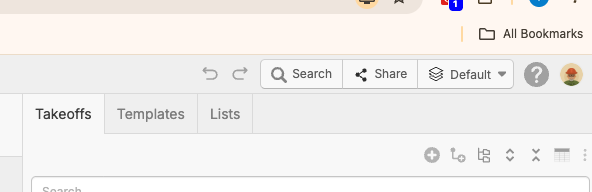
There is a newer list of Keyboard Hotkeys on the top right corner of your takeoff screen (see pic)
It is located inside of the ? Icon.